> ## Documentation Index
> Fetch the complete documentation index at: https://docs.rownd.io/llms.txt
> Use this file to discover all available pages before exploring further.
# Teams
> Give team members access to co-manage aspects of your Rownd account.
#### Inviting new team members
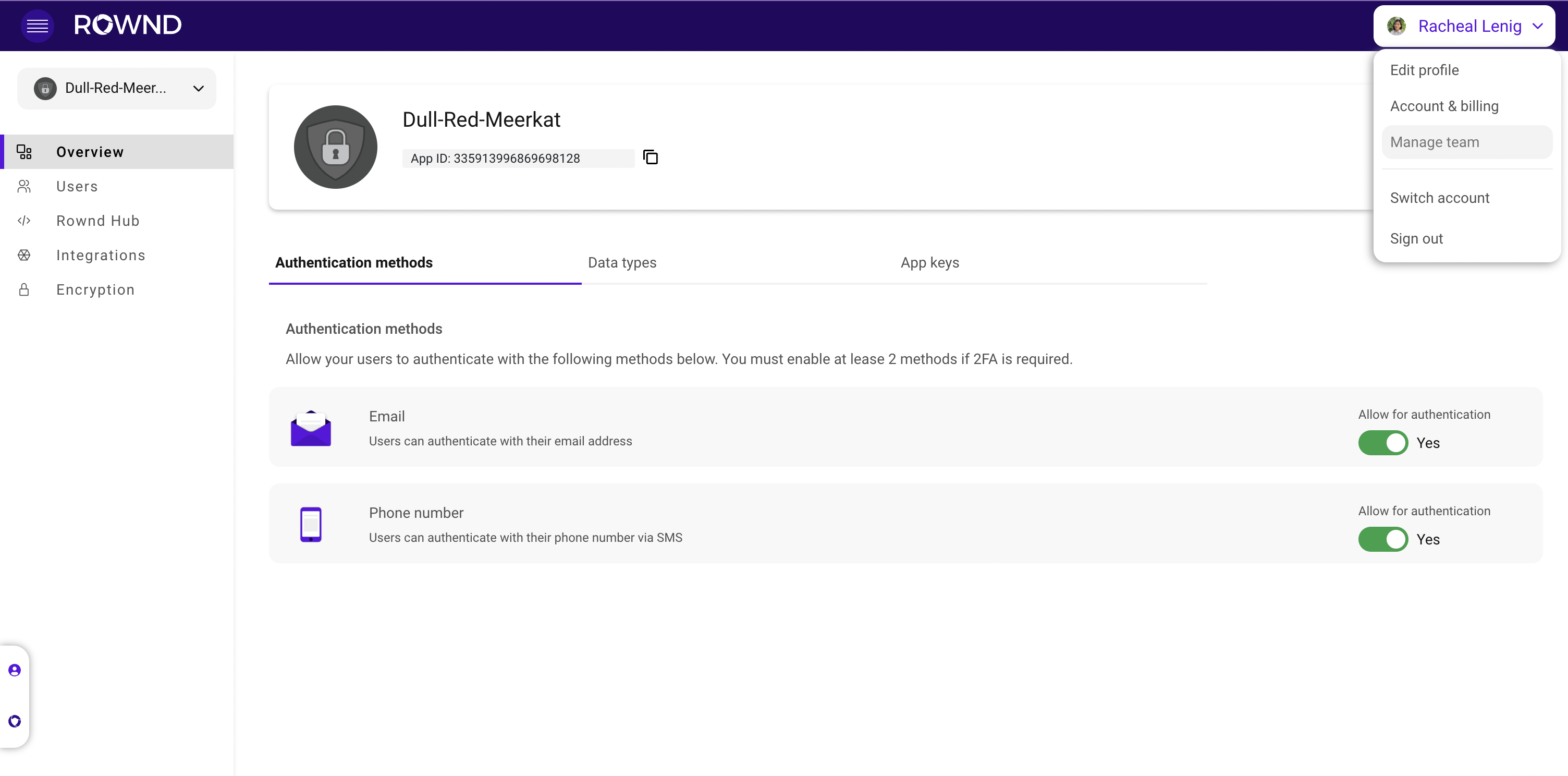
First, sign into your Rownd account, click on the dropdown menu on the top right
and select **Manage team**.
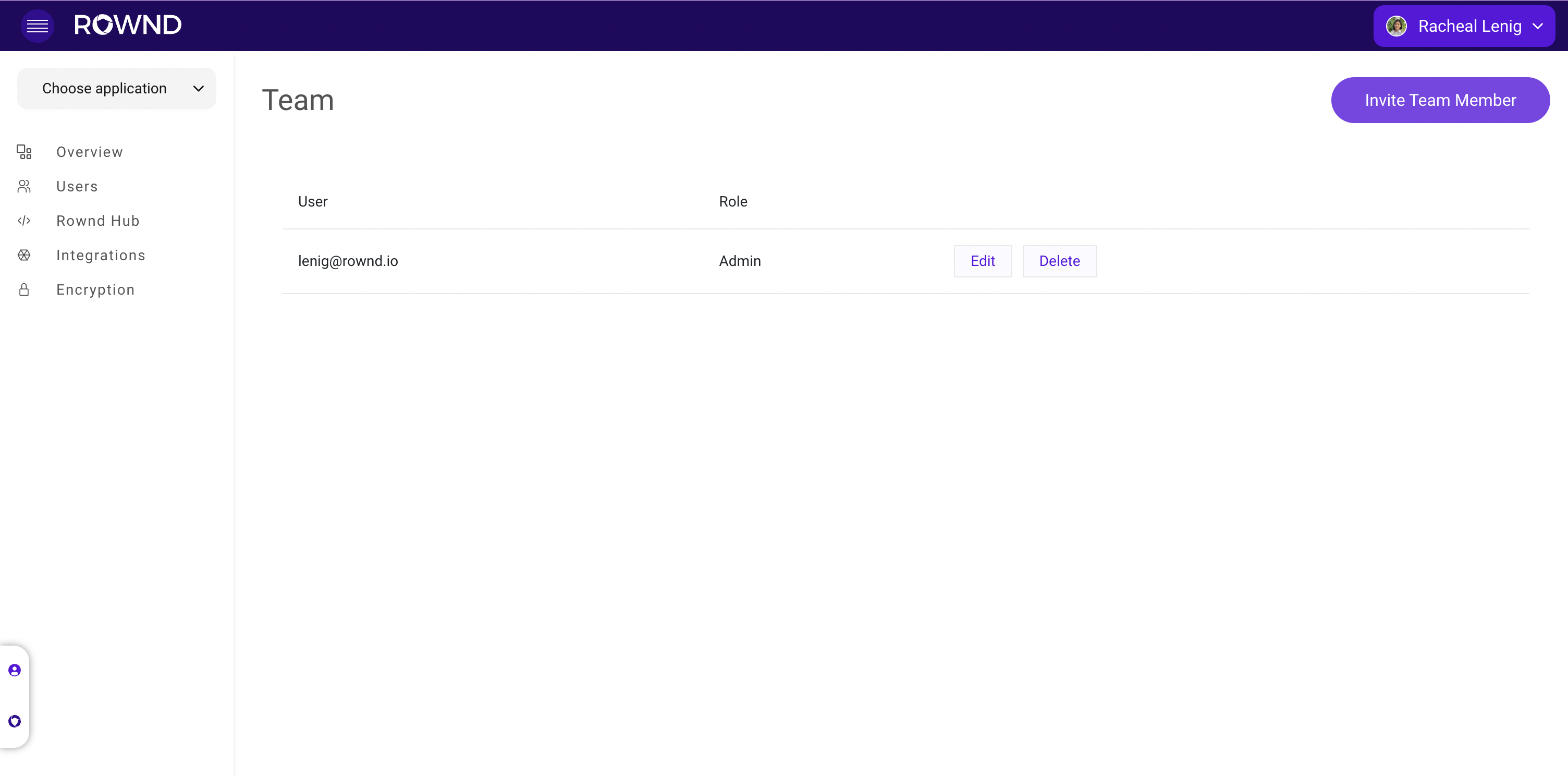
 On the **Team** page, click **Invite team member**.
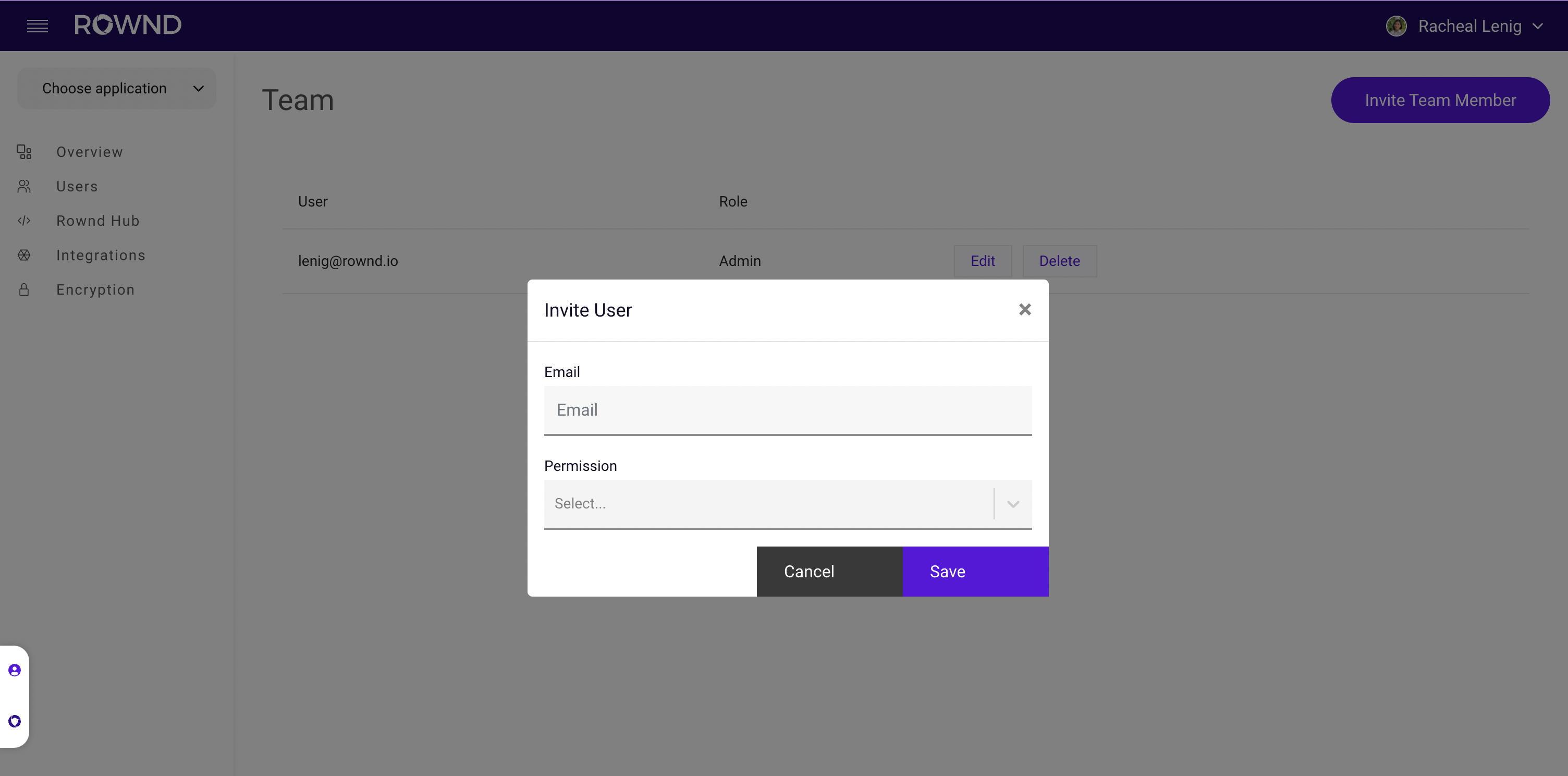
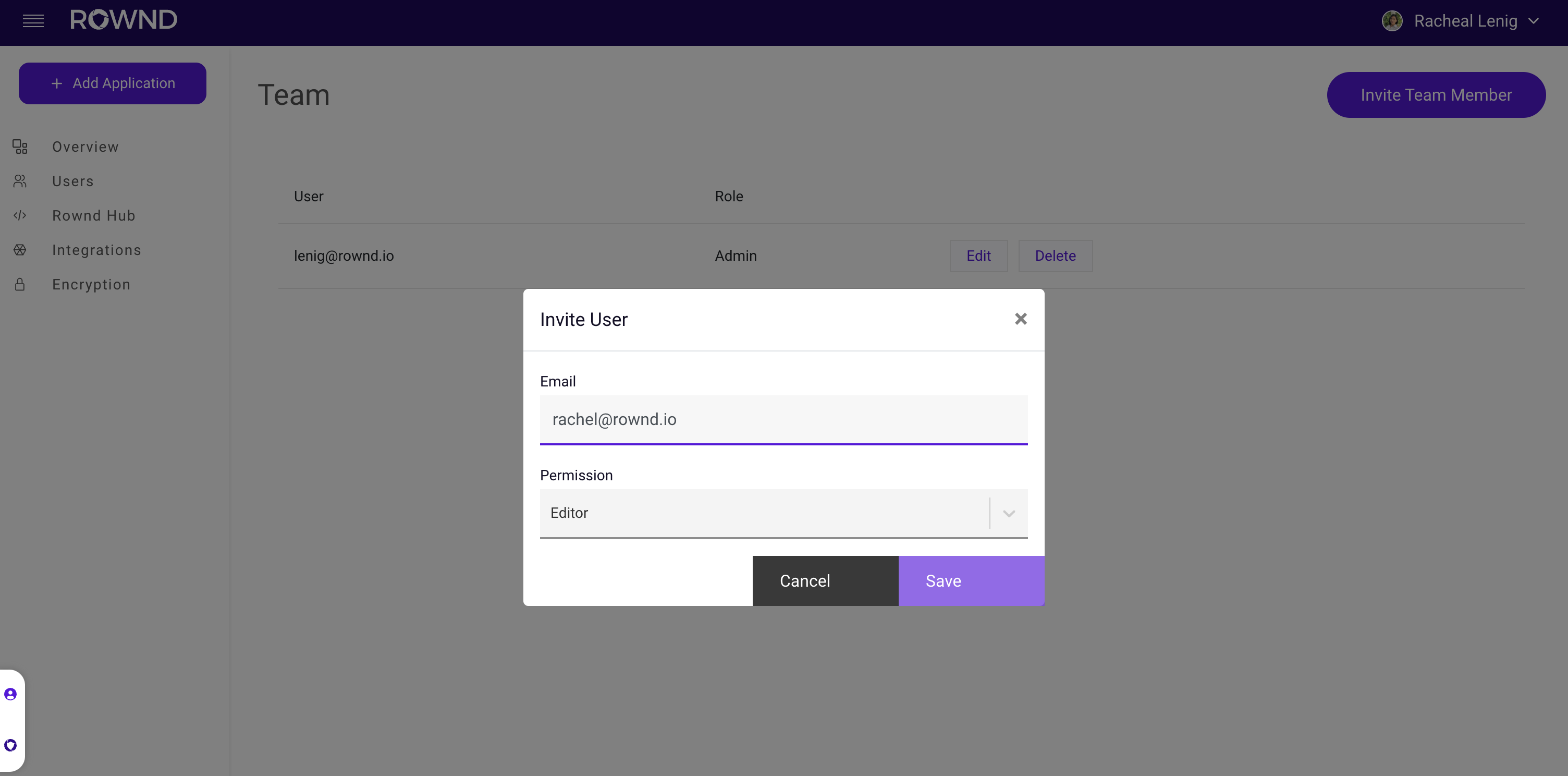
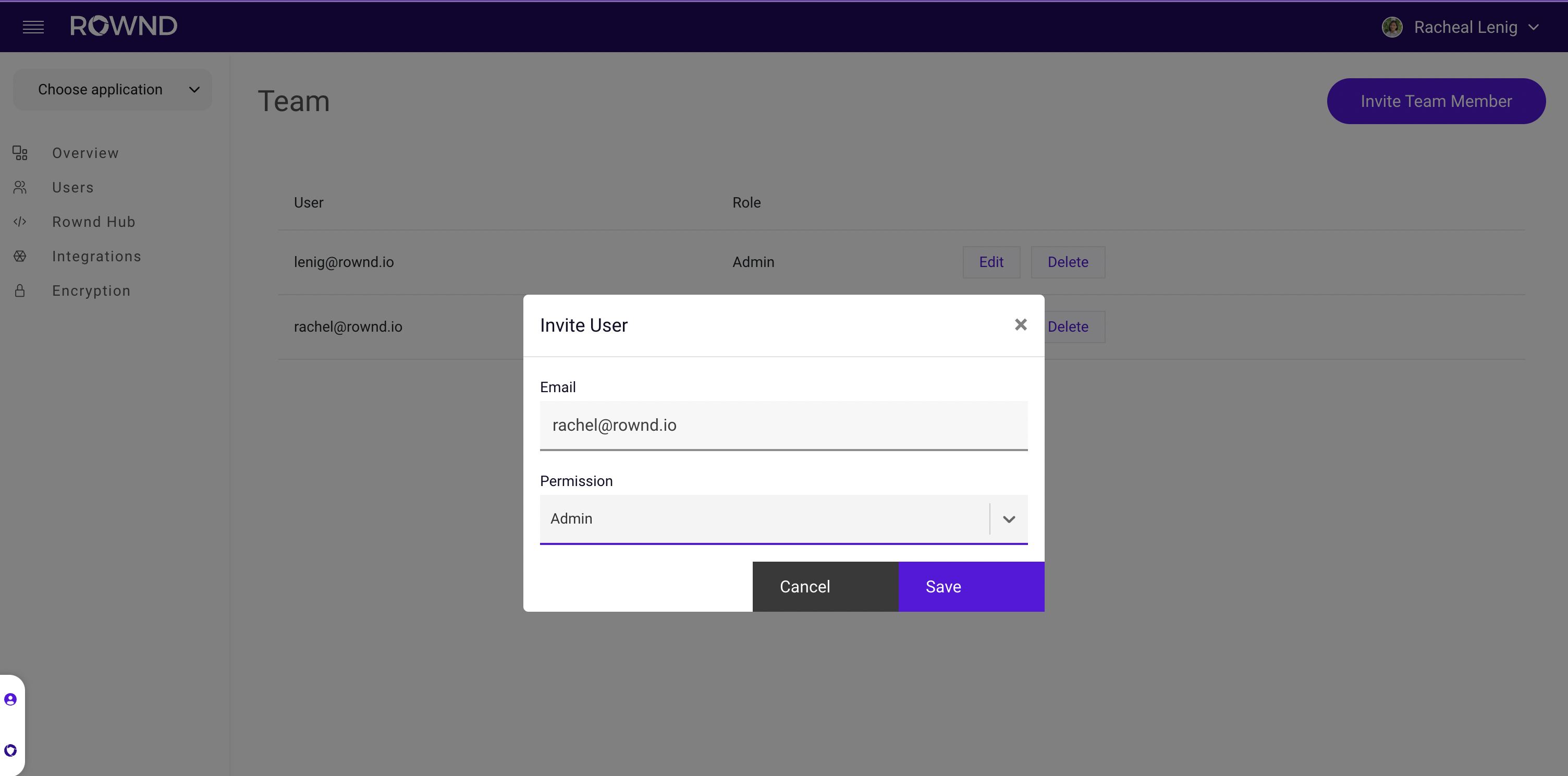
 Enter the new team member's **email** **address** and choose the **level of
access** to grant. There are three different **permission** levels:
* **Editor:** Can add and edit applicationsbut cannot invite team members or
modify account settings.
* **Admin:** Full account control over apps, team members, billing, etc.
* **View-only:** Can view most aspects of the platform but cannot make any
changes.
Enter the new team member's **email** **address** and choose the **level of
access** to grant. There are three different **permission** levels:
* **Editor:** Can add and edit applicationsbut cannot invite team members or
modify account settings.
* **Admin:** Full account control over apps, team members, billing, etc.
* **View-only:** Can view most aspects of the platform but cannot make any
changes.
 Click **Save** to send the invitation. Your team member will receive an email
containing a link that will automatically sign them into Rownd and prompt them
to accept or decline the invitation to join your account.
Click **Save** to send the invitation. Your team member will receive an email
containing a link that will automatically sign them into Rownd and prompt them
to accept or decline the invitation to join your account.
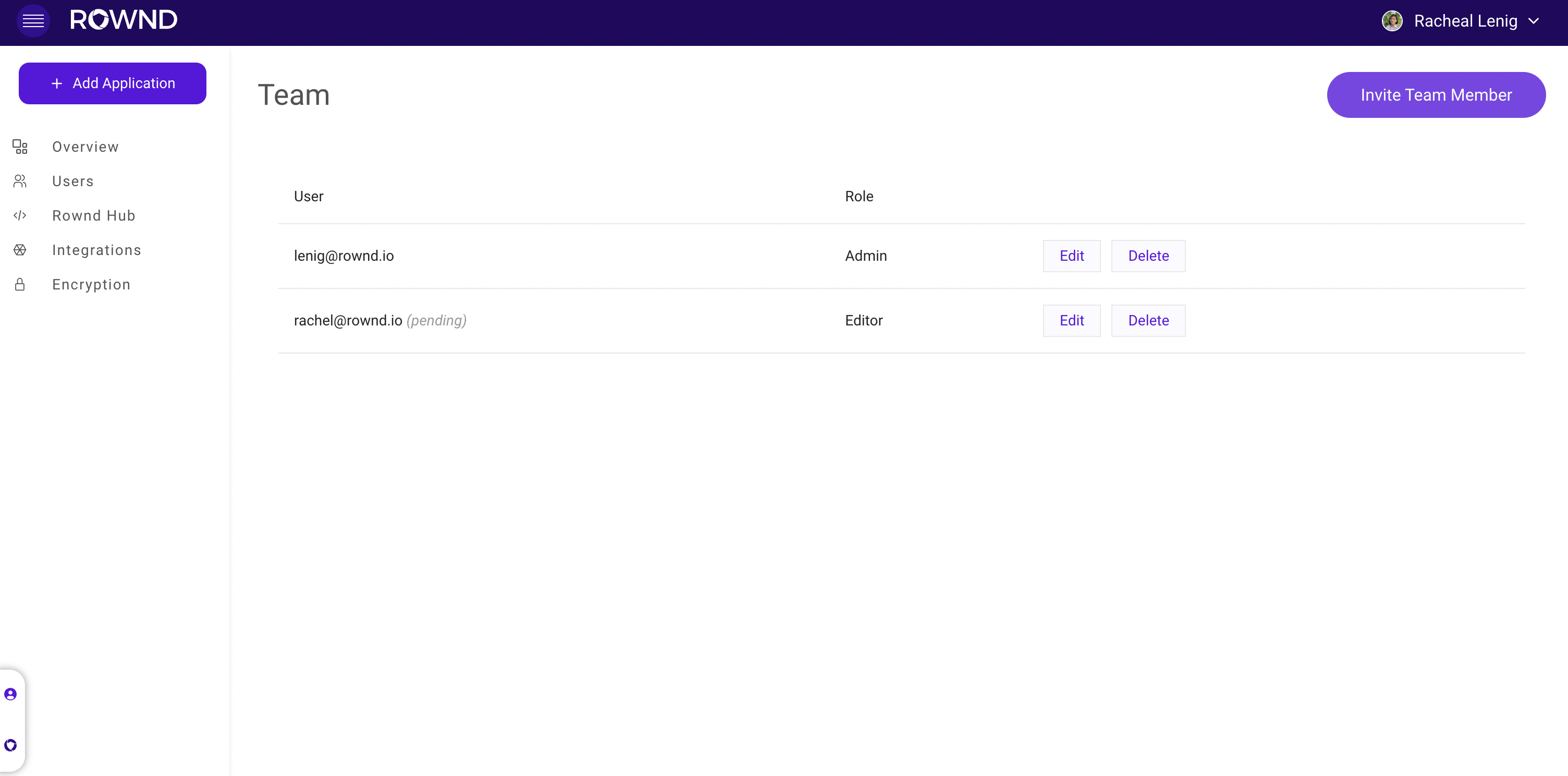
 Once the invitation is sent, the new team member will show as **pending** until
they've accepted the invitation.
Once the invitation is sent, the new team member will show as **pending** until
they've accepted the invitation.
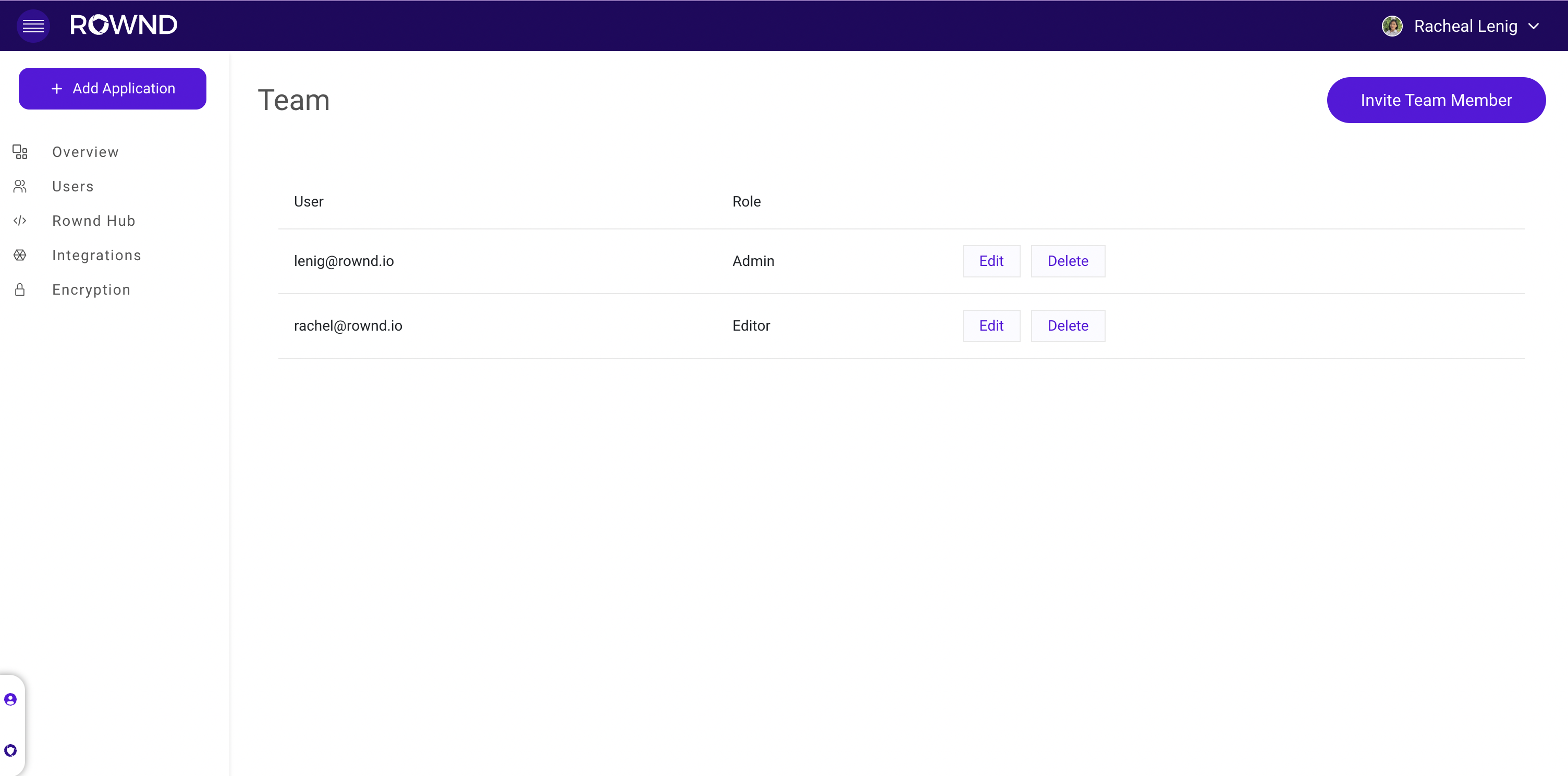
 Once they've accepted the invitation, the pending status will be removed.
 #### Editing a team member's access
Click **Edit** next to the team member whose access you want to modify.
#### Editing a team member's access
Click **Edit** next to the team member whose access you want to modify.
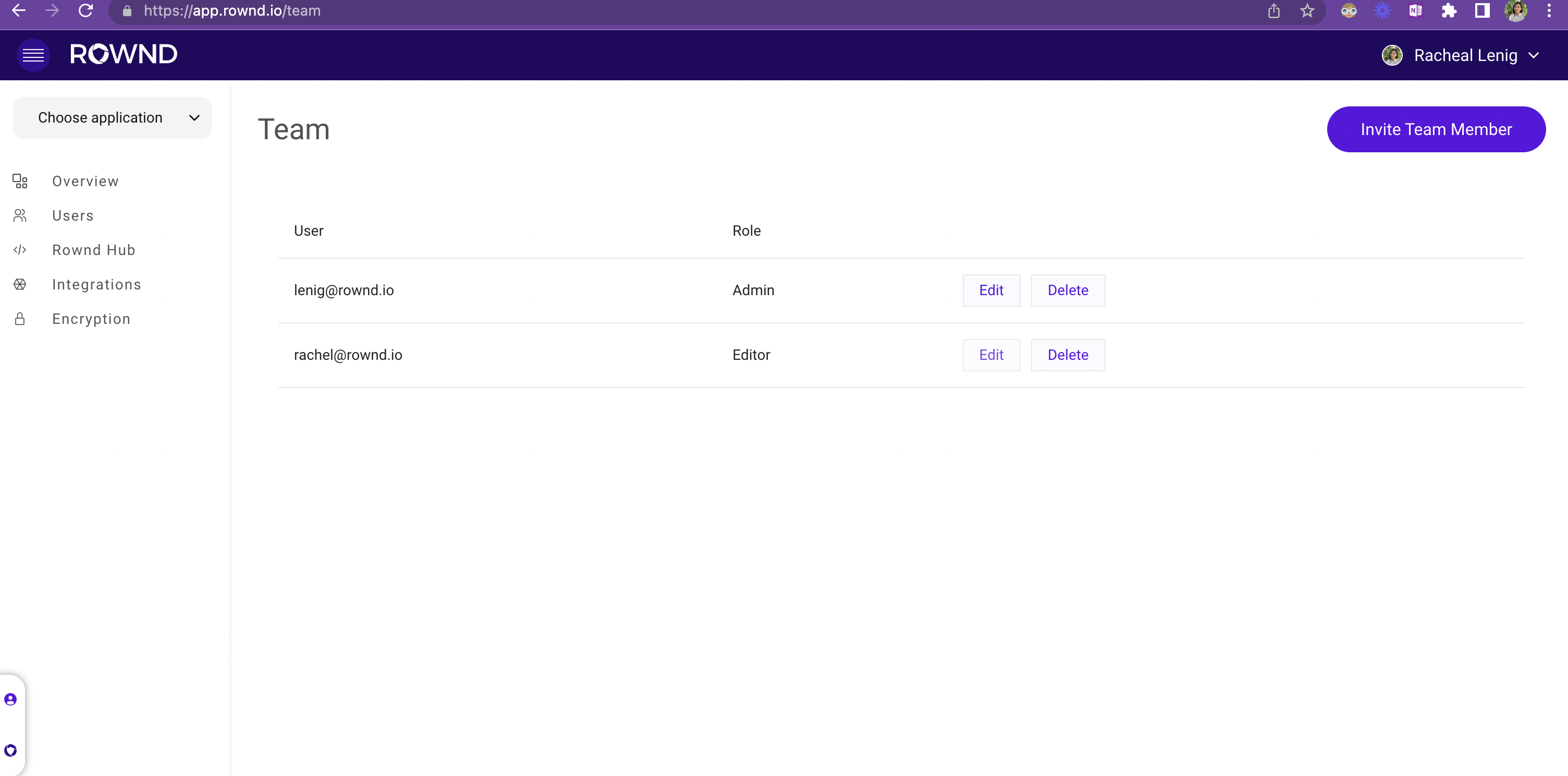 Choose an updated **permission** level for the team member. Then click **save**
to update.
Choose an updated **permission** level for the team member. Then click **save**
to update.
 #### Removing a team member
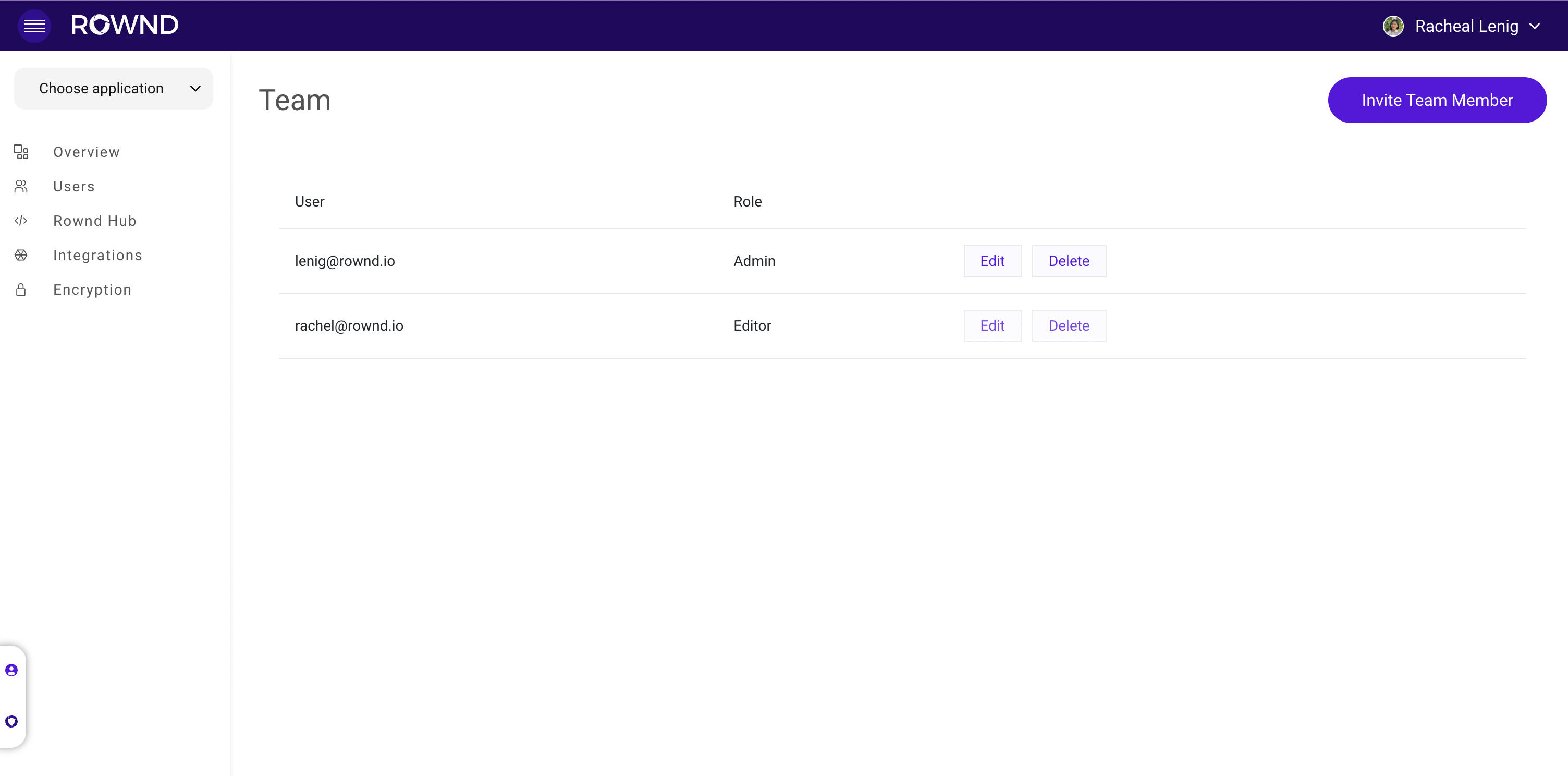
Click **Delete** next to the team member who you want to remove
#### Removing a team member
Click **Delete** next to the team member who you want to remove
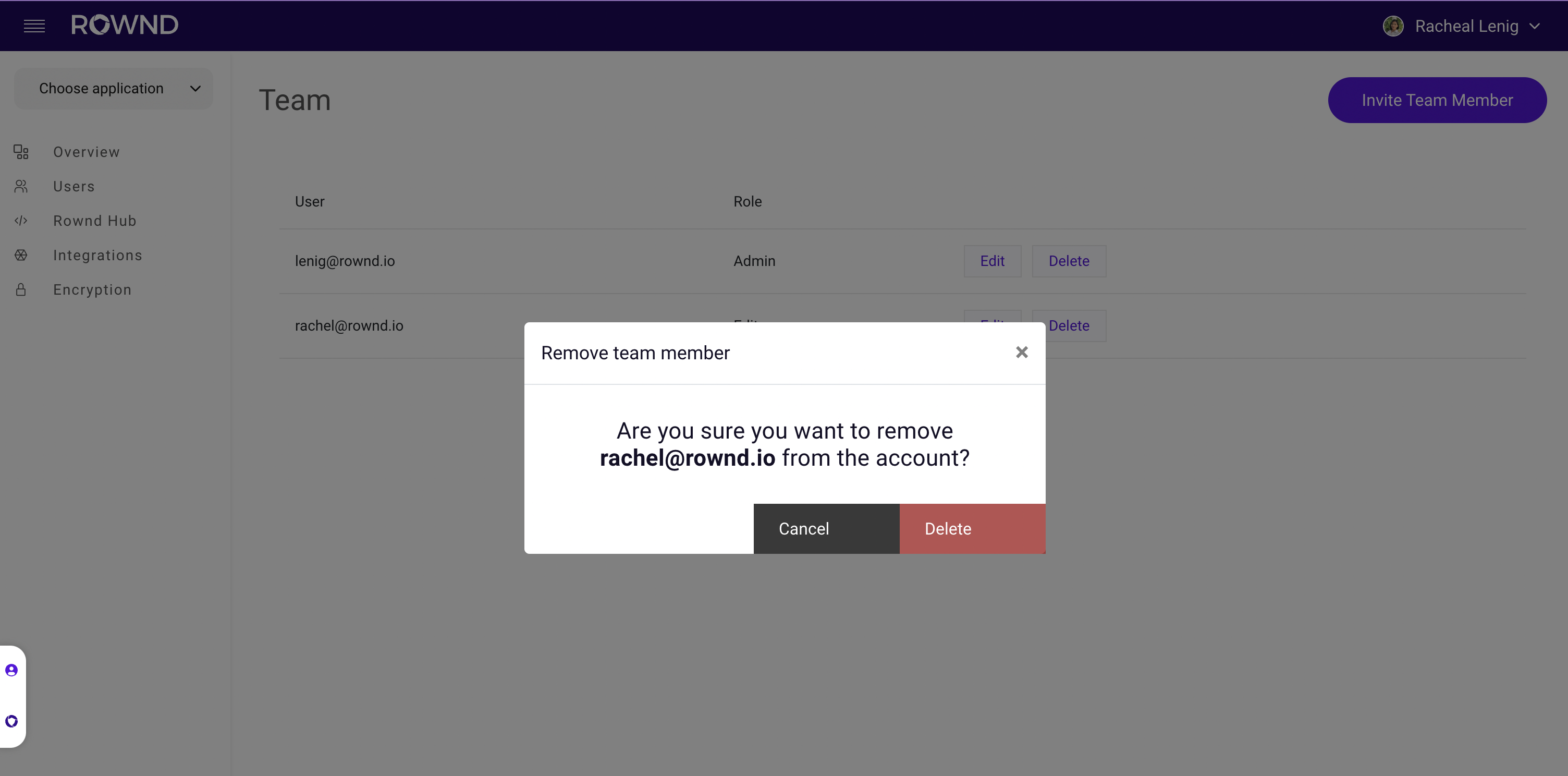
 On the resulting confirmation dialog, click **Delete** to confirm the action.
The team member will be removed from your account.
On the resulting confirmation dialog, click **Delete** to confirm the action.
The team member will be removed from your account.