> ## Documentation Index
> Fetch the complete documentation index at: https://docs.rownd.io/llms.txt
> Use this file to discover all available pages before exploring further.
# Sign in with Passkeys
> Enable passkey authentication to provide a secure and seamless sign-in experience for users with passkey-enabled devices.
Passkeys offer a secure and convenient method for users to sign in to their accounts on your website and mobile apps. By enabling passkeys, users with passkey-enabled devices can save their passkeys to their account. Once a passkey is saved, users can quickly sign in using their passkeys, providing a seamless and efficient experience.
## Enabling passkeys
Enabling passkeys is easy and does not require any additional code. Simply follow the steps below to enable passkeys for your application.
1. Open your app in the [Rownd platform](https://app.rownd.io/applications). Then click on the **Sign-in methods** tab on the left to adjust your flow.
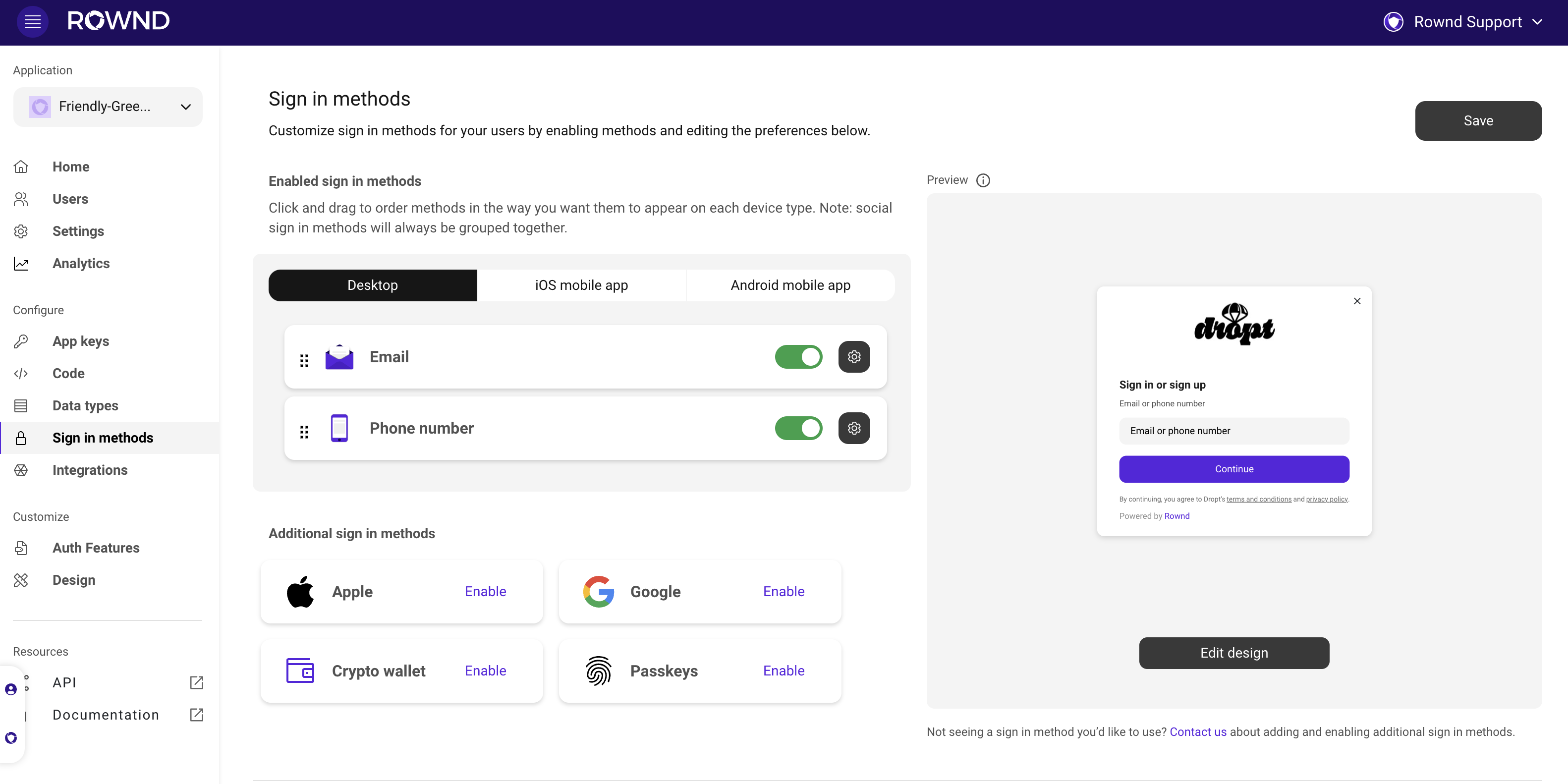 2. Scroll down to view the authentication methods, and press **Enable** next to **Passkeys**.
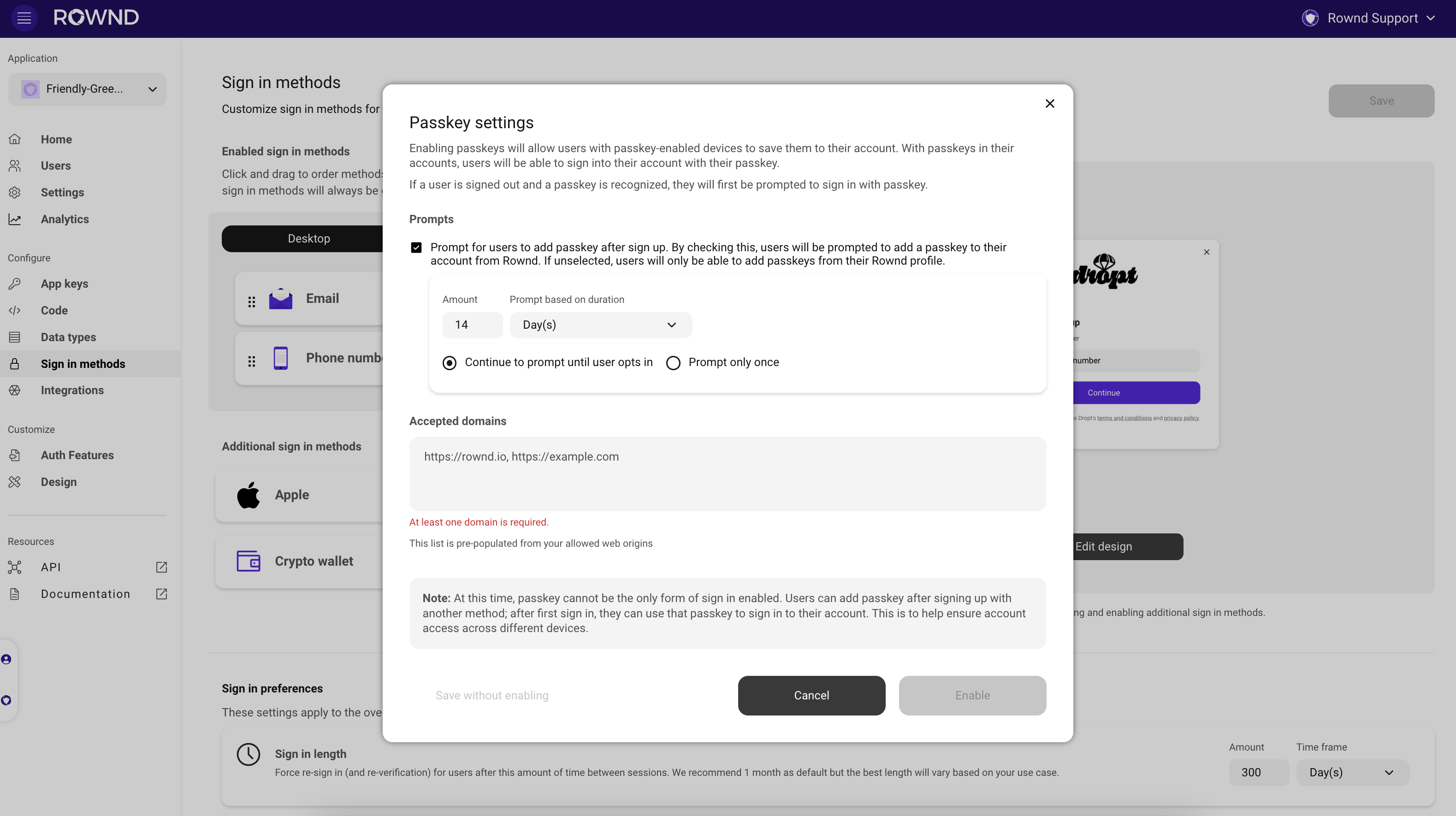 At this time, passkey cannot be the only form of sign-in enabled. Users can add passkeys after signing up with
another method. After the first sign-in, they can use their passkeys to sign in to their account. This ensures
account access across different devices.
3. To confirm your changes, press **Save** in the upper right-hand corner of the page.
With passkeys enabled, users with passkey-enabled devices can now enjoy a seamless and secure sign-in experience on your website and mobile apps.
1. Configure iOS "Mobile app settings" in the [Rownd Platform](https://app.rownd.io/methods) with a subdomain, bundle ID, and a team ID. Instructions can be found [here](/configuration/mobile/ios).
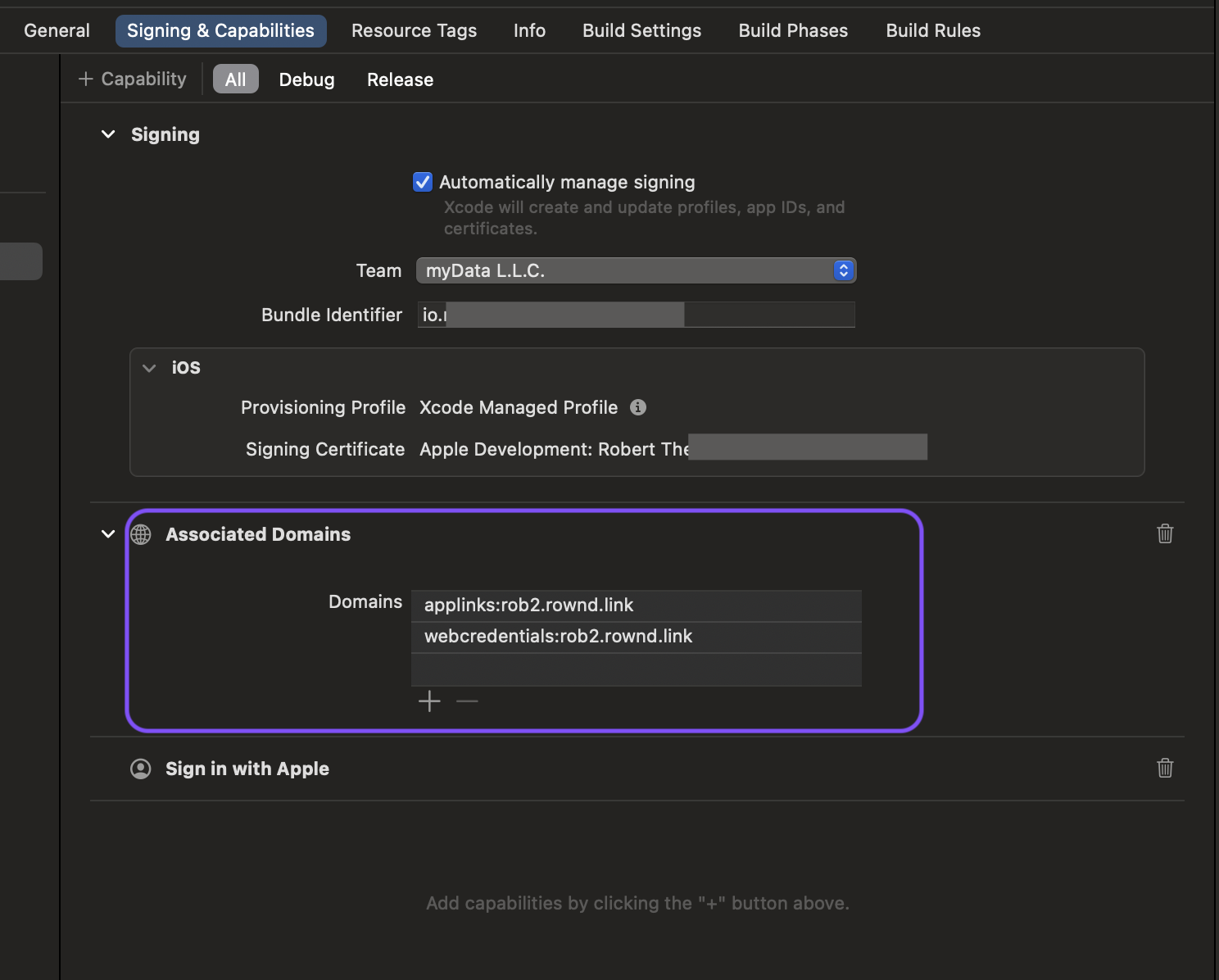
2. In Xcode ensure "Associated Domains" for applinks and webcredentials are configured with your Rownd subdomain
applinks:your\_set\_subdomain.rownd.link
webcredentials:your\_set\_subdomain.rownd.link
See image below
At this time, passkey cannot be the only form of sign-in enabled. Users can add passkeys after signing up with
another method. After the first sign-in, they can use their passkeys to sign in to their account. This ensures
account access across different devices.
3. To confirm your changes, press **Save** in the upper right-hand corner of the page.
With passkeys enabled, users with passkey-enabled devices can now enjoy a seamless and secure sign-in experience on your website and mobile apps.
1. Configure iOS "Mobile app settings" in the [Rownd Platform](https://app.rownd.io/methods) with a subdomain, bundle ID, and a team ID. Instructions can be found [here](/configuration/mobile/ios).
2. In Xcode ensure "Associated Domains" for applinks and webcredentials are configured with your Rownd subdomain
applinks:your\_set\_subdomain.rownd.link
webcredentials:your\_set\_subdomain.rownd.link
See image below
 1. Configure iOS "Mobile app settings" in the [Rownd Platform](https://app.rownd.io/methods) with a subdomain, package name, and a SHA 256 cert fingerprint. Instructions can be found [here](/configuration/mobile/android).