> ## Documentation Index
> Fetch the complete documentation index at: https://docs.rownd.io/llms.txt
> Use this file to discover all available pages before exploring further.
# MailerLite
The Rownd integration for MailerLite makes it easy to keep your subscriber list in sync. The integration will automatically create a new subscriber or update an existing one in your MailerLite account.
#### Setup
The MailerLite integration can be enabled from the [Rownd dashboard.](https://app.rownd.io)
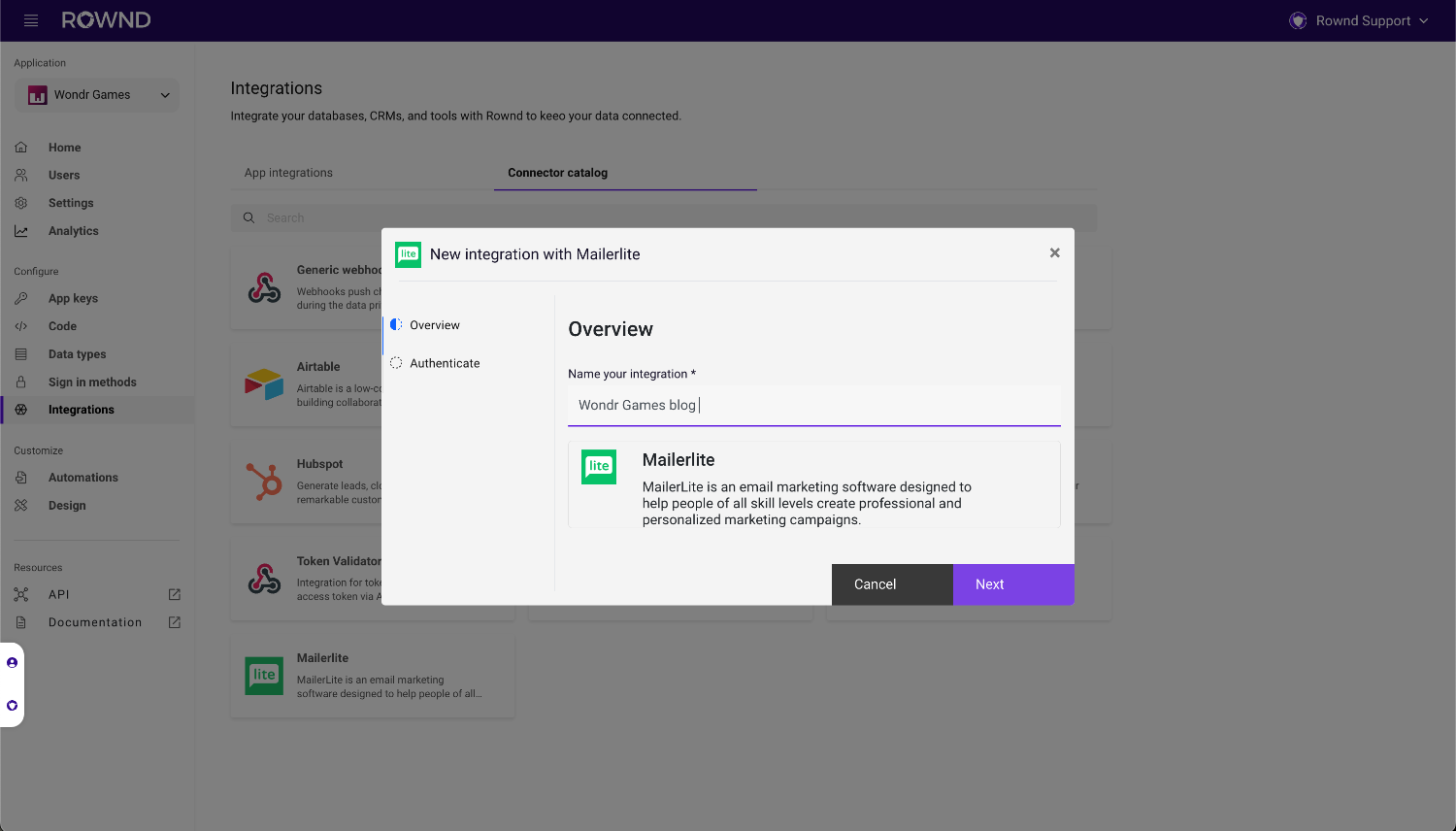
1. From the menu, select **Integrations.**
2. Select the **Connector catalog** tab.
3. From the list of available connectors, click on the **MailerLite**
entry. The connector setup dialog will appear.
4. Enter a descriptive name and click **Next**.
 #### Authenticate
Enter your MailerLite API key. You can create or retrieve your API key from your MailerLite account.
1. In your MailerLite account, navigate to the [Integrations](https://dashboard.mailerlite.com/integrations) page.
2. Under MailerLite API click **Use**.
3. Click **Generate new token**.
4. Name your new token and copy/paste it into the field in the Rownd dialog.
#### Authenticate
Enter your MailerLite API key. You can create or retrieve your API key from your MailerLite account.
1. In your MailerLite account, navigate to the [Integrations](https://dashboard.mailerlite.com/integrations) page.
2. Under MailerLite API click **Use**.
3. Click **Generate new token**.
4. Name your new token and copy/paste it into the field in the Rownd dialog.
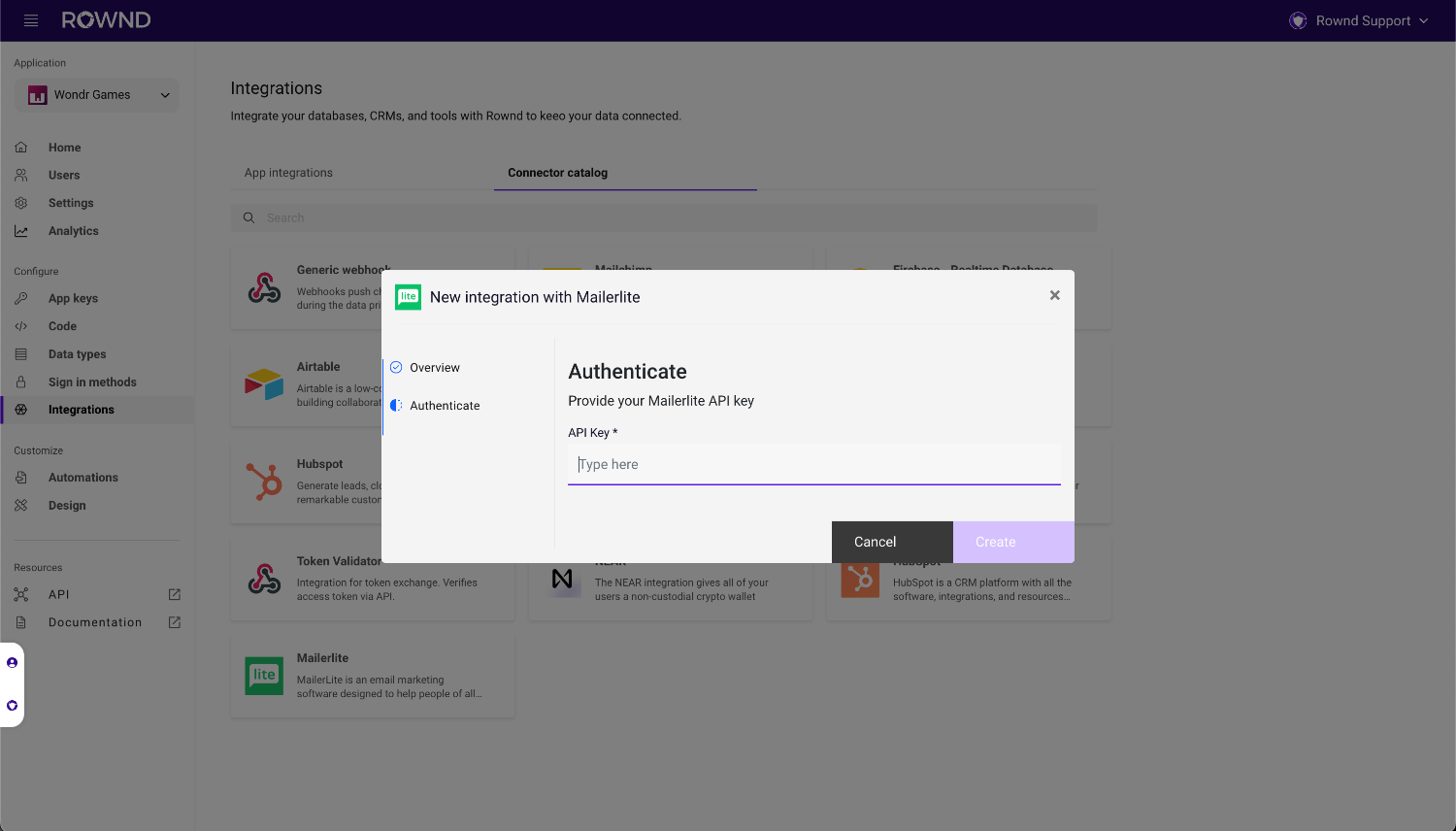 5. Click **Create** to create the connection.
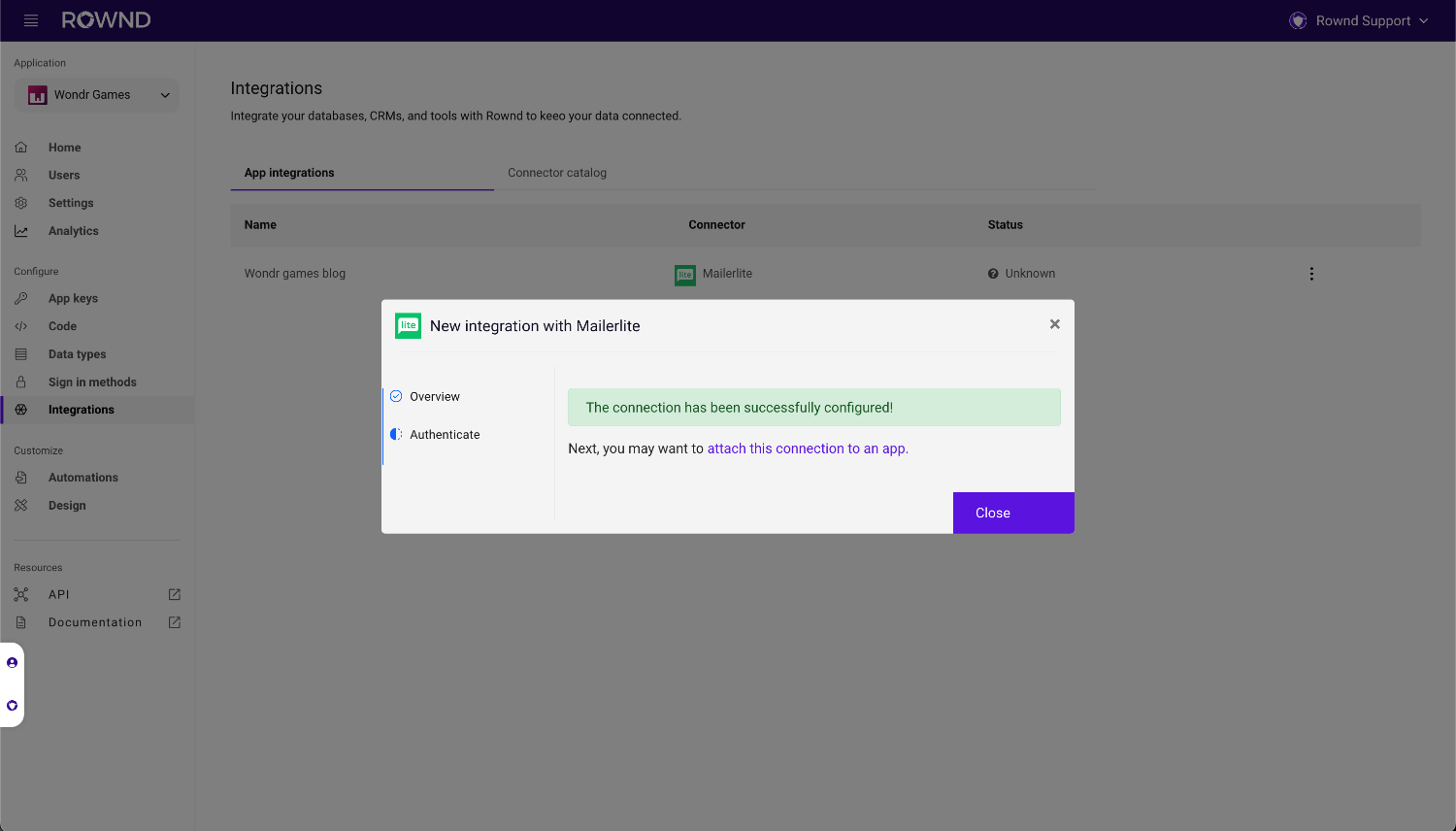
The dialog should indicate that the integration was created successfully. Now that the connection exists, we need to attach it to an application.
5. Click **Create** to create the connection.
The dialog should indicate that the integration was created successfully. Now that the connection exists, we need to attach it to an application.
 #### Attach to an application
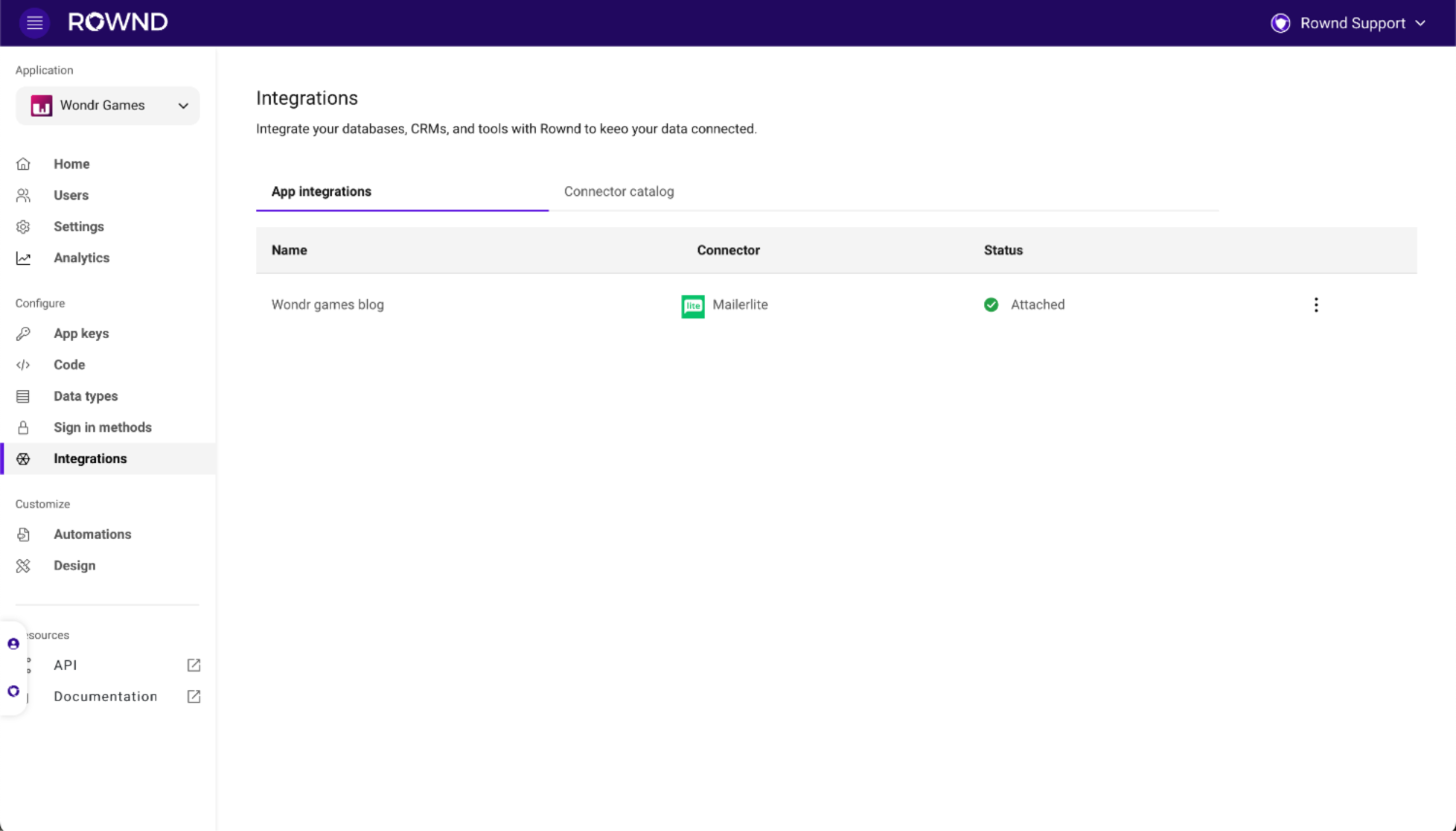
1. From the Integrations table, click the overflow icon on your new Integration
and select **Attach to application**
2. Choose the application from the selector and click **Next**
#### Attach to an application
1. From the Integrations table, click the overflow icon on your new Integration
and select **Attach to application**
2. Choose the application from the selector and click **Next**
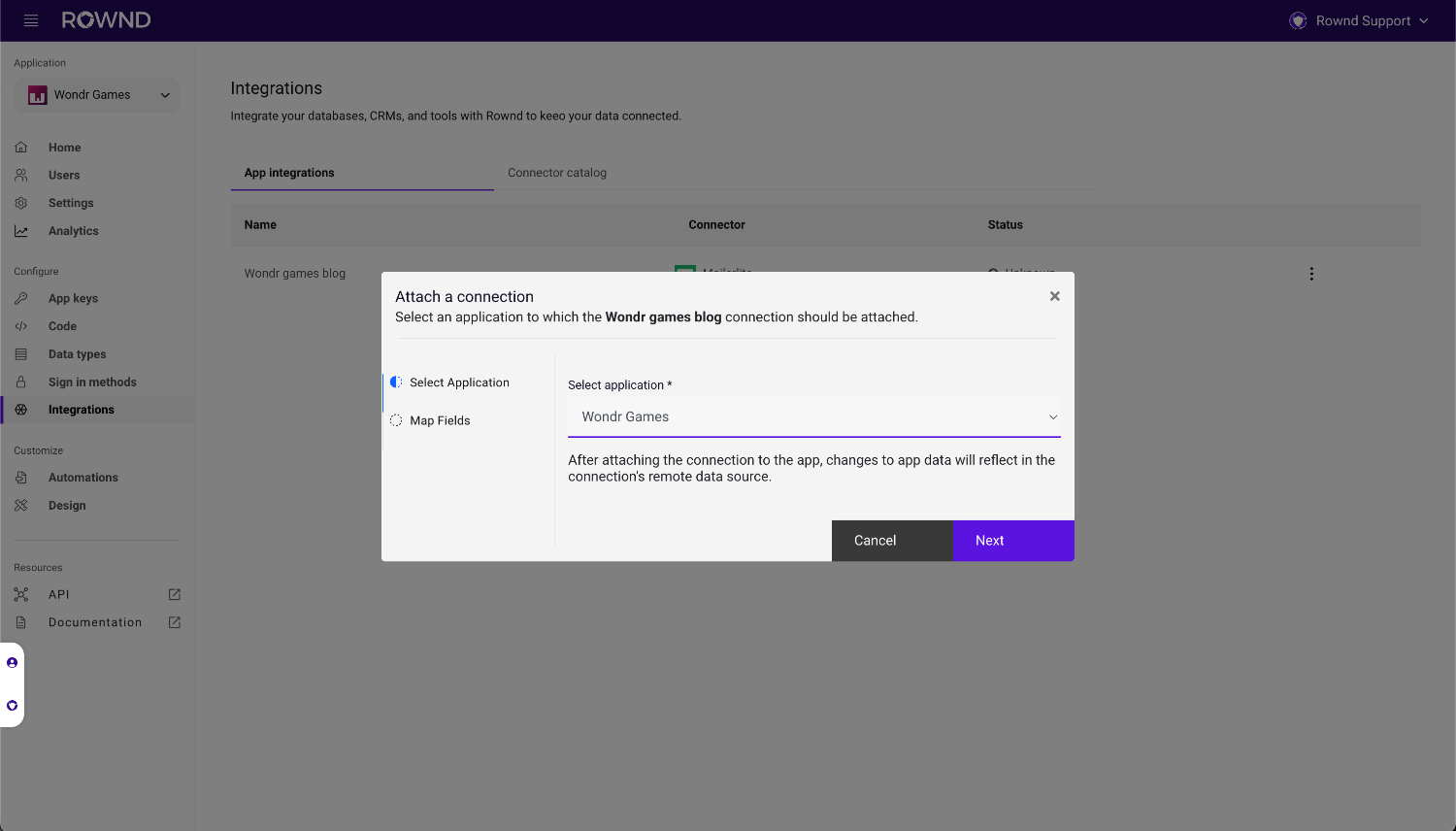 3. Map data between the Rownd application and your new Integration
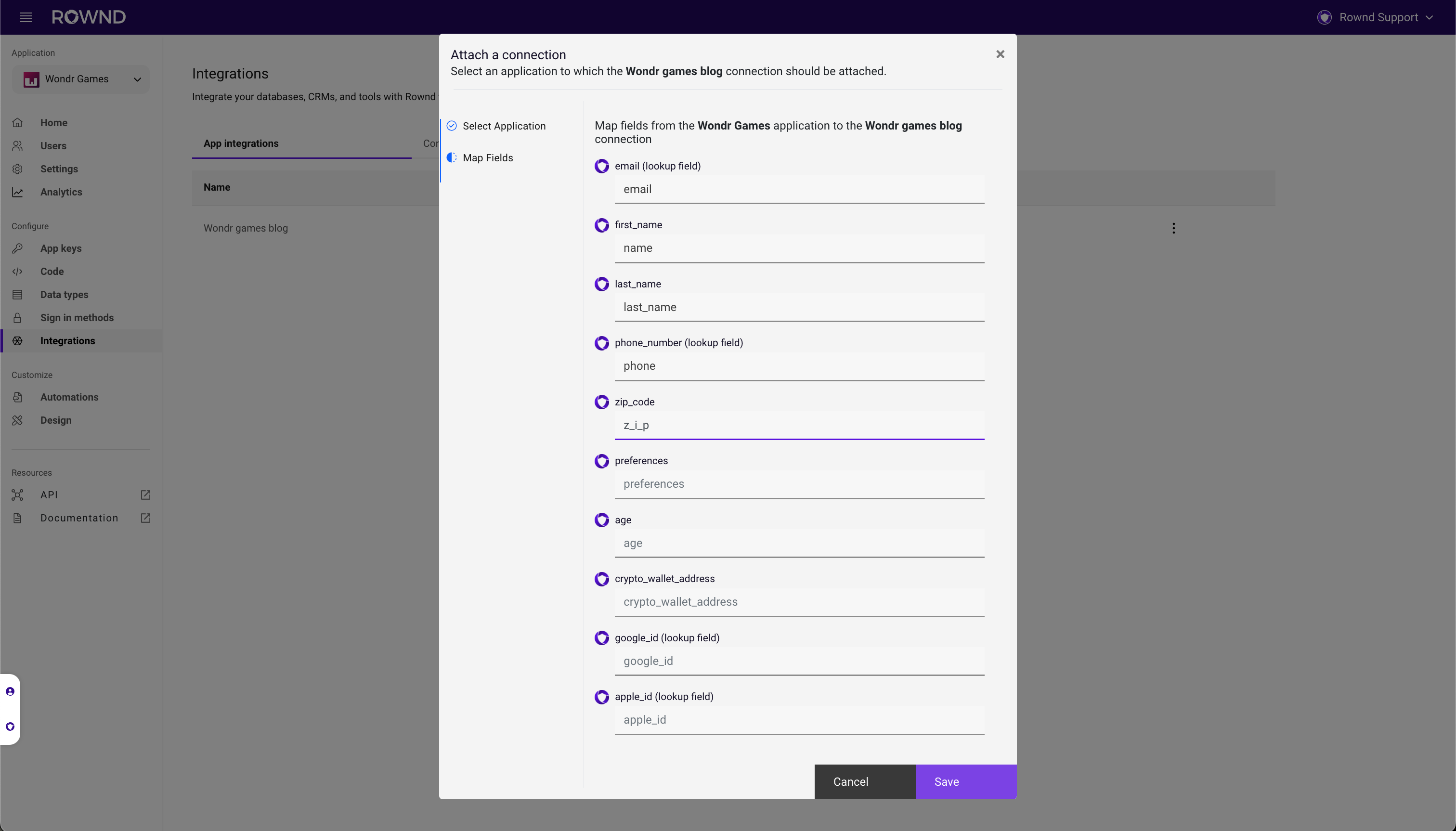 A mapping for the `email` field is required. Rownd uses this field to identify
and search for existing subscribers in your MailerLite account. Rownd can only manage fields for which you have provided a mapping.
4. Click **Save.**
After a moment, the attached application should appear in the row next to the
connection. Once this occurs, data updates should begin flowing through the
integration.
A mapping for the `email` field is required. Rownd uses this field to identify
and search for existing subscribers in your MailerLite account. Rownd can only manage fields for which you have provided a mapping.
4. Click **Save.**
After a moment, the attached application should appear in the row next to the
connection. Once this occurs, data updates should begin flowing through the
integration.