> ## Documentation Index
> Fetch the complete documentation index at: https://docs.rownd.io/llms.txt
> Use this file to discover all available pages before exploring further.
# Android configuration
> Preparing Rownd to work with your Android app
Configure Rownd for Android mobile devices including ([React Native](/sdk-reference/mobile/react-native) and [Flutter](/sdk-reference/mobile/flutter)). This configuration will allow multiple Rownd services to work in the Android operating system like [App Links](/configuration/mobile/overview#what-are-universal-links) and [Passkeys](/configuration/authentication-methods/passkeys).
## Android App Links
### 1. Configure the Rownd Platform
1. Select **Sign-in methods** from the left navigation menu.
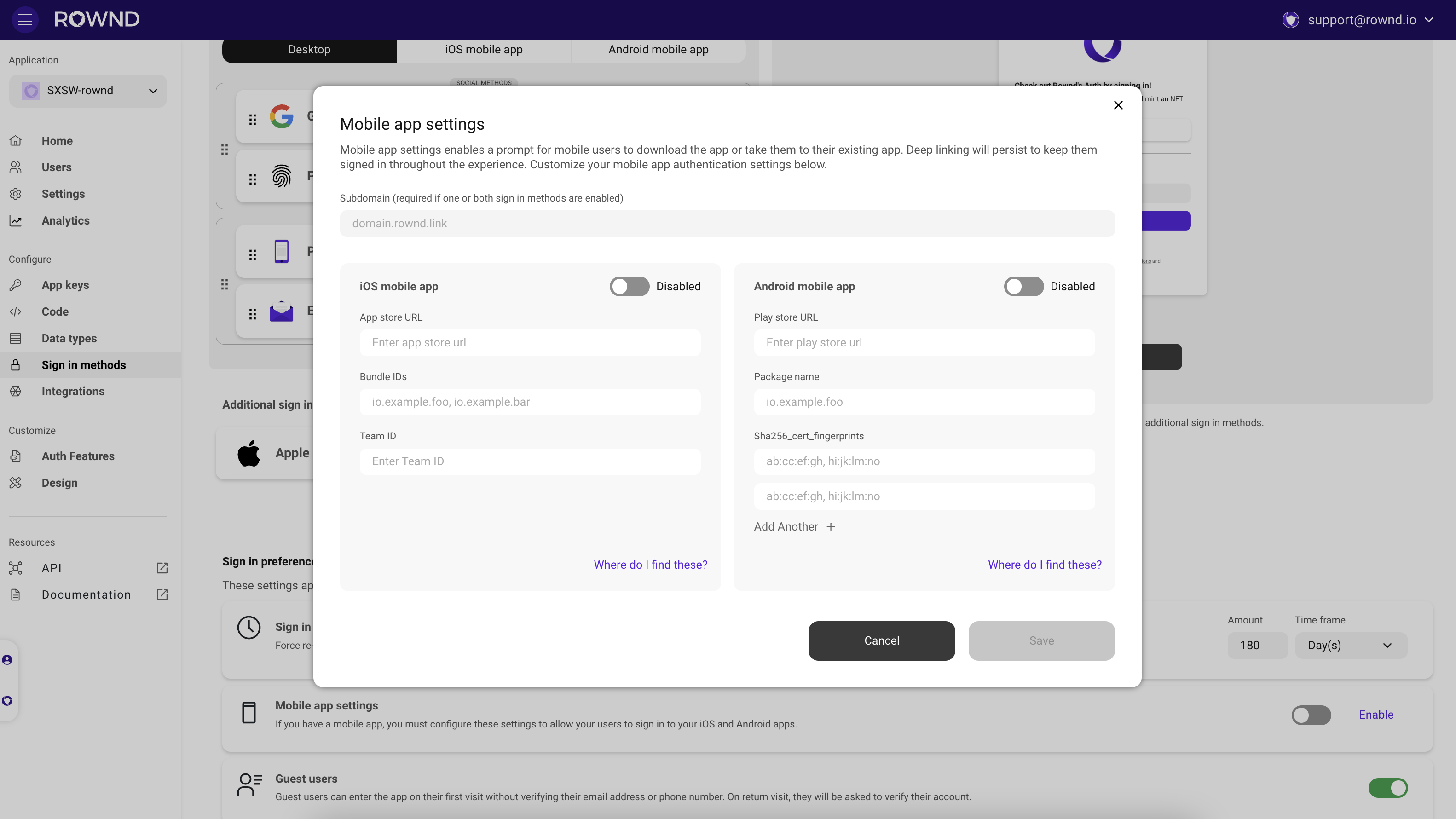
2. In the Sign-in preferences section, locate [**Mobile app settings**](/configuration/mobile/mobile-app-settings)
3. Fill out mobile app settings for Android
* Subdomain (e.g., myapp for myapp.rownd.link - the .rownd.link portion is added automatically).
* Play store URL - The direct link to your app in the Google Play Store
* Package name - The package name for your app as shown in the Google Play Console (e.g., `com.example.myapp`)
* SHA256 certificate fingerprints - For dev/test apps signed locally or manually, obtain the SHA256 hash from your keystore. For apps distributed through the Google Play Store that use automatic signing, obtain the SHA256 hash from the [Google Play Console](https://play.google.com/console/developers).
4. Ensure Android is **enabled** and hit **save**
 ### 2. Configure your Android project
Configure the `AndroidManifest.xml` file with an intent filter containing your `subdomain`
```xml theme={null}
```
### 2. Configure your Android project
Configure the `AndroidManifest.xml` file with an intent filter containing your `subdomain`
```xml theme={null}
```