> ## Documentation Index
> Fetch the complete documentation index at: https://docs.rownd.io/llms.txt
> Use this file to discover all available pages before exploring further.
# Mobile app settings
> Configuring your mobile app
Configure mobile app settings to enable a prompt for mobile users to download the app or take them to their existing app.
### Configure iOS mobile app settings
1. App store URL
1. Log in to [Apple App Store Connect](https://appstoreconnect.apple.com/apps).
2. Go to My Apps and click on you app.
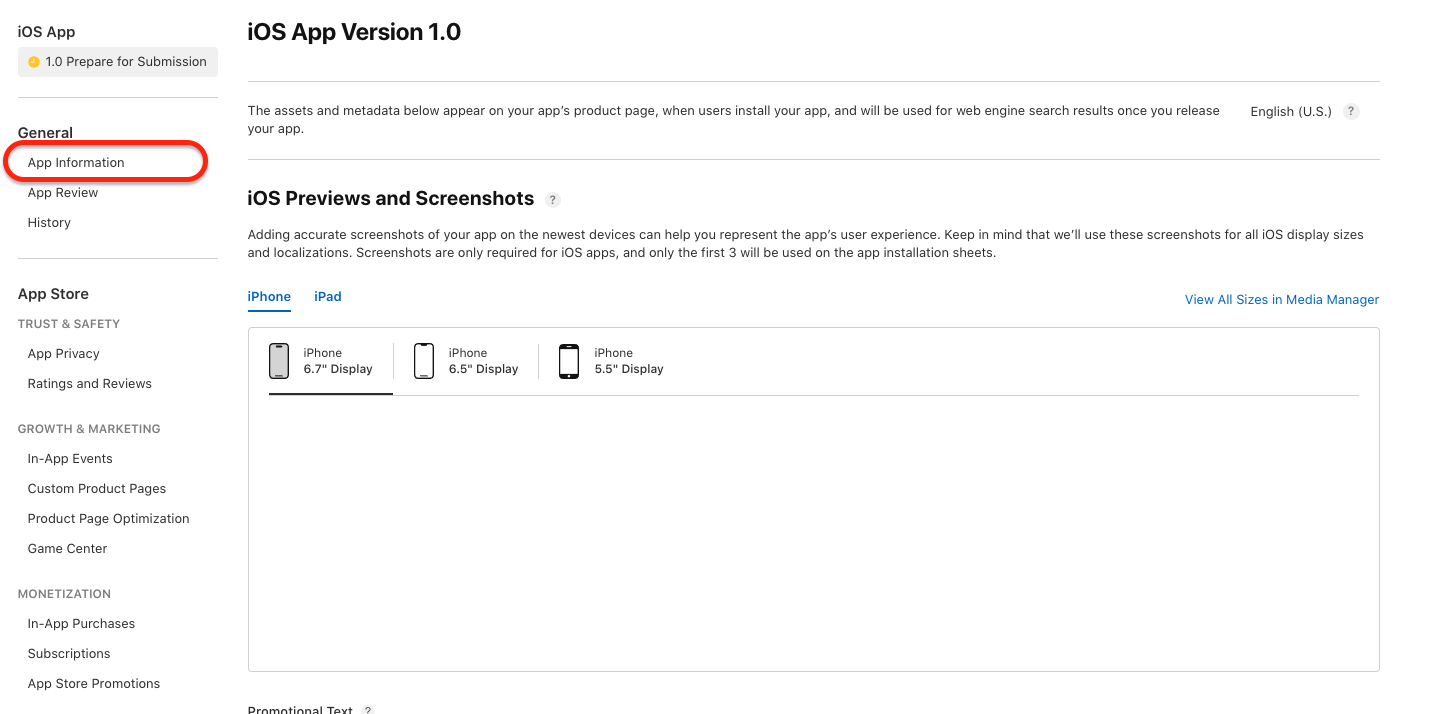
3. Click App Information in the General section.
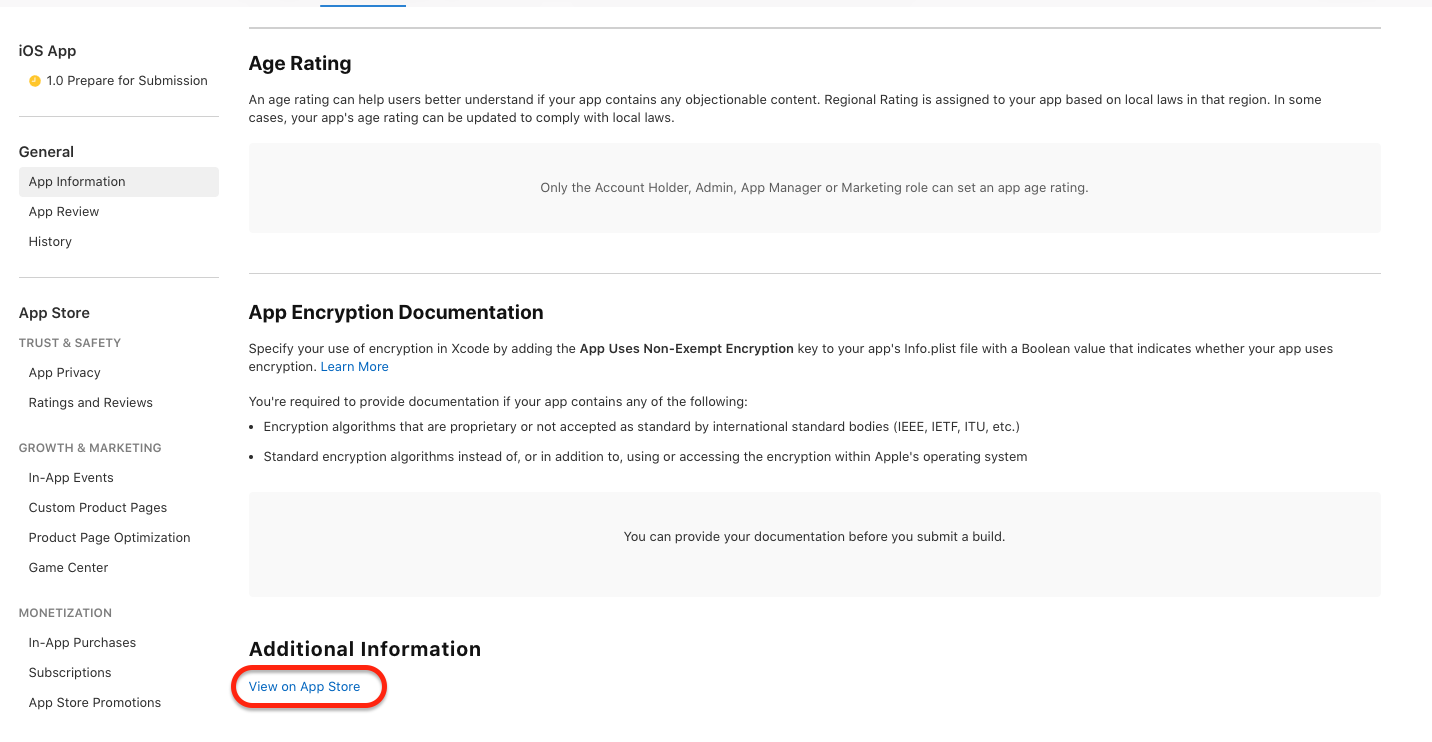
 4. Click View on App Store in the Additional Information section.
 5. Copy the URL of the page.
2. Bundle IDs
1. Enter a comma-separated list of bundle IDs for your app (e.g., `com.example.myapp`)
3. Team ID
1. Log in to Apple [Apple Developer Portal](https://developer.apple.com/account)
2. Scroll down to Membership details
5. Copy the URL of the page.
2. Bundle IDs
1. Enter a comma-separated list of bundle IDs for your app (e.g., `com.example.myapp`)
3. Team ID
1. Log in to Apple [Apple Developer Portal](https://developer.apple.com/account)
2. Scroll down to Membership details
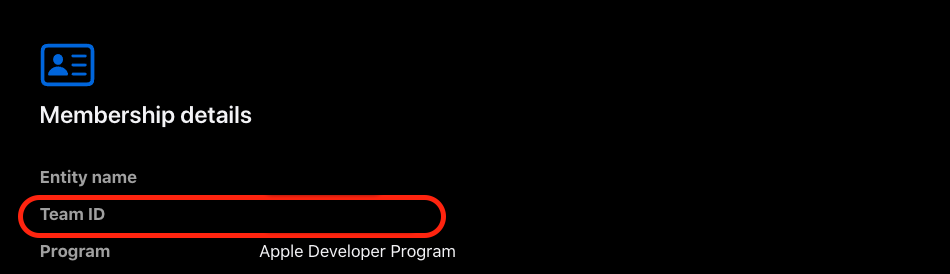 3. Copy the Team ID
### Configure Android mobile app settings
1. Play store URL
1. Log in to [Google Play Console](https://play.google.com/console)
2. Select your app from the dashboard.
3. Click on View on Google Play.
3. Copy the Team ID
### Configure Android mobile app settings
1. Play store URL
1. Log in to [Google Play Console](https://play.google.com/console)
2. Select your app from the dashboard.
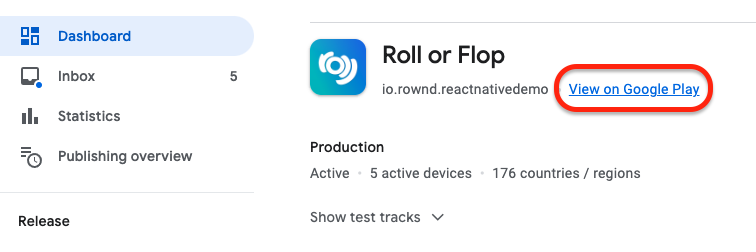
3. Click on View on Google Play.
 4. Copy the URL of the page.
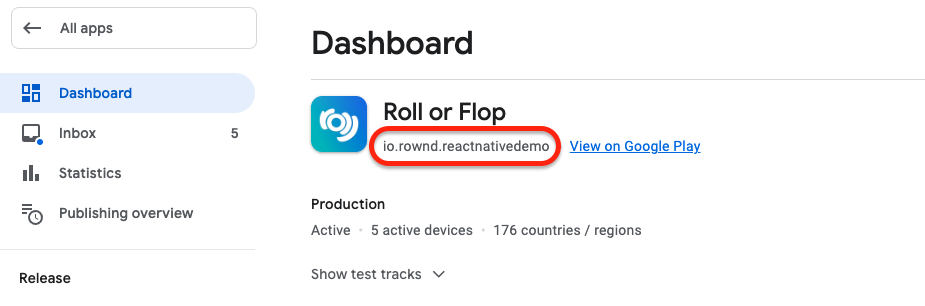
2. Package name
1. Log in to [Google Play Console](https://play.google.com/console)
2. Select your app from the dashboard.
3. Copy package name from the app dashboard
4. Copy the URL of the page.
2. Package name
1. Log in to [Google Play Console](https://play.google.com/console)
2. Select your app from the dashboard.
3. Copy package name from the app dashboard
 3. SHA-256 Cert Fingerprints
1. Log in to [Google Play Console](https://play.google.com/console)
2. Select your app from the dashboard.
3. Click App Integrity under the Release section then click Settings in the Play app signing section.
3. SHA-256 Cert Fingerprints
1. Log in to [Google Play Console](https://play.google.com/console)
2. Select your app from the dashboard.
3. Click App Integrity under the Release section then click Settings in the Play app signing section.
 4.Copy SHA-256 certificate fingerprint in the App signing key certificate section
