> ## Documentation Index
> Fetch the complete documentation index at: https://docs.rownd.io/llms.txt
> Use this file to discover all available pages before exploring further.
# Javascript API Reference
> API Reference for the Rownd Javascript API
## `requestSignIn(opts)`
Show the Rownd sign-in dialog, or automatically initiate a sign-in.
### Examples
#### Prompt the user to sign in
`requestSignIn()` can be called without any parameters and the user can choose to sign in
with any of your app's configured sign-in methods.
```javascript theme={null}
rownd.requestSignIn()
```
#### Automatically sign in a user using their email
```javascript theme={null}
rownd.requestSignIn({
identifier: 'john.doe@acme.com',
auto_sign_in: true
})
```
#### Prompt the user to sign in with Google and save a referral code to their user data
```javascript theme={null}
rownd.requestSignIn({
method: 'google',
user_data: {
referral_code: 'ref_123'
}
})
```
### Parameters
An email address or phone number (in E164 format) to
which a verification message may be sent. If the Rownd app is configured to
allow unverified users, then sign-in will complete without verification if the
user has not signed in previously.
This is frequently used in conjunction with
`auto_sign_in: true` to automatically sign in a specific user.
```javascript Email theme={null}
rownd.requestSignIn({ identifier: 'john.doe@acme.com' })
```
```javascript Phone theme={null}
rownd.requestSignIn({ identifier: '+19199999999' })
```
When `true`, automatically trigger a sign-in
attempt *if* `identifier` is included or an email address or phone number has
already been set in the user data.
```javascript Auto Sign-in theme={null}
rownd.requestSignIn({
identifier: 'john.doe@acme.com'.
auto_sign_in: true
});
```
If set, Rownd will initiate a sign-in with the specified method. Must be one of
`'email'`, `'phone'`, `'google'`, `'one_tap'`, `'passkeys'`, `'crypto_wallet'`, or `'anonymous'`
```javascript Email theme={null}
rownd.requestSignIn({ method: 'email' });
```
```javascript Phone theme={null}
rownd.requestSignIn({ method: 'phone' });
```
```javascript Google theme={null}
rownd.requestSignIn({ method: 'google' });
```
```javascript One Tap theme={null}
rownd.requestSignIn({
method: 'one_tap',
method_options: {
// This is optional. Let's you anchor the One Tap dialog to a specific
// spot on the page.
prompt_parent_id: '#one-tap-anchor-selector'
}
});
```
```javascript Passkeys theme={null}
rownd.requestSignIn({ method: 'passkeys' });
```
```javascript Crypto Wallet theme={null}
rownd.requestSignIn({ method: 'crypto_wallet' });
```
```javascript Anonymous theme={null}
rownd.requestSignIn({ method: 'anonymous' });
```
After the sign-in completes, Rownd will redirect to the configured `postLoginRedirectUrl`
or `postRegistrationUrl`. If `false`, the user will stay on the verification page. This
can be helpful if your site or application cannnot be reached via a traditional redirect,
such as if it's running in an iframe.
```javascript Disable Redirect theme={null}
rownd.requestSignIn({
method: 'email',
redirect: false,
})
```
An absolute or relative URL for which to redirect the user after the sign-in completes.
This overrides `postLoginRedirectUrl` and `postRegistrationUrl` if they are set.
```javascript Absolute URL theme={null}
rownd.requestSignIn({ post_login_redirect: 'https:/my.site/signed_in' })
```
```javascript Relative Path theme={null}
rownd.requestSignIn({ post_login_redirect: '/some/path?signed_in=true' })
```
Extra user data to append to the user record when sign-in completes.
```javascript Referral Code theme={null}
rownd.requestSignIn({
user_data: {
referral_code: 'ref_123'
}
})
```
When `true`, user data that was previously set using `rownd.user.set()` will be added to
the user record after sign-in.
```javascript No User Data theme={null}
rownd.user.set({ nick_name: 'Joey' })
...
// { 'nick_name': 'joey' } will not be added to the user's data
rownd.user.requestSignIn({
include_user_data: false
})
```
This option applies only when you have opted to split the sign-up/sign-in flow via the Rownd dashboard. Valid values are `"sign_in"` or `"sign_up"`. If you don't set this value, the user will be presented with the unified sign-in/sign-up flow.
```javascript Sign Up theme={null}
rownd.requestSignIn({ intent: 'sign_up' })
```
The step in the sign-in dialog to display. Must be one of [LoginStep](#loginstep)
This is an advanced option and rarely necessary for most use-cases
```javascript Success theme={null}
rownd.requestSignIn({
login_step: rownd.LoginStep.Success
})
```
## `signOut()`
Signs out the user, clearing their access token and user data
```javascript theme={null}
rownd.signOut()
```
## `getAccessToken()`
Get the access token for the signed-in user.
### Parameters
When `true`, if no access token is present or if
it's expired, the promise will not be resolved until a valid token is
available. While unlikely, this could result in waiting forever.
```javascript theme={null}
const token = await rownd.getAccessToken({ waitForToken: true });
```
## `user`
Gets the data associated with the current user
```javascript theme={null}
// data = { user_id: "user_1235, email: "john.doe@acme.com", referral_code: "ref_123" }
const data = await rownd.user.get();
```
Replaces all of the user data for the current user.
You can call `set()` prior to a user signing in. This can be useful to construct user data if your app
supports an unauthenticated state.
```javascript theme={null}
rownd.user.set({ email: "john.doe@acme.com", referral_code: "ref_123"})
```
Sets a specific field in current user's data.
```javascript theme={null}
rownd.user.setValue('referral_code', 'ref_123')
```
Upload a file for a specific field
The file parameter must be a javascript File. If the field name corresponds to
an image field, the mime type of the file must have an "image/" prefix (e.g.
"image/png")
```javascript theme={null}
rownd.user.uploadFile("profile_picture", file);
```
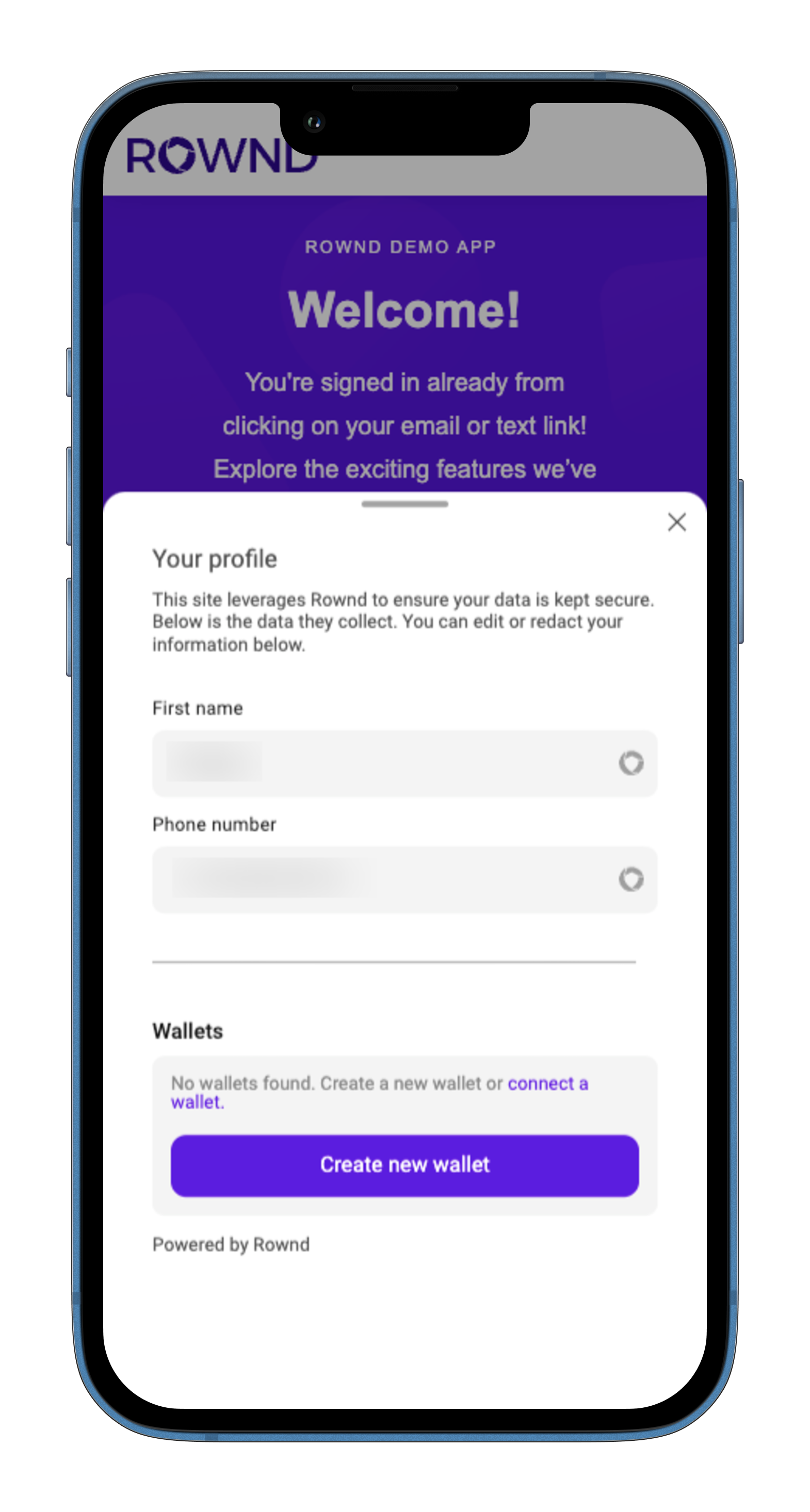
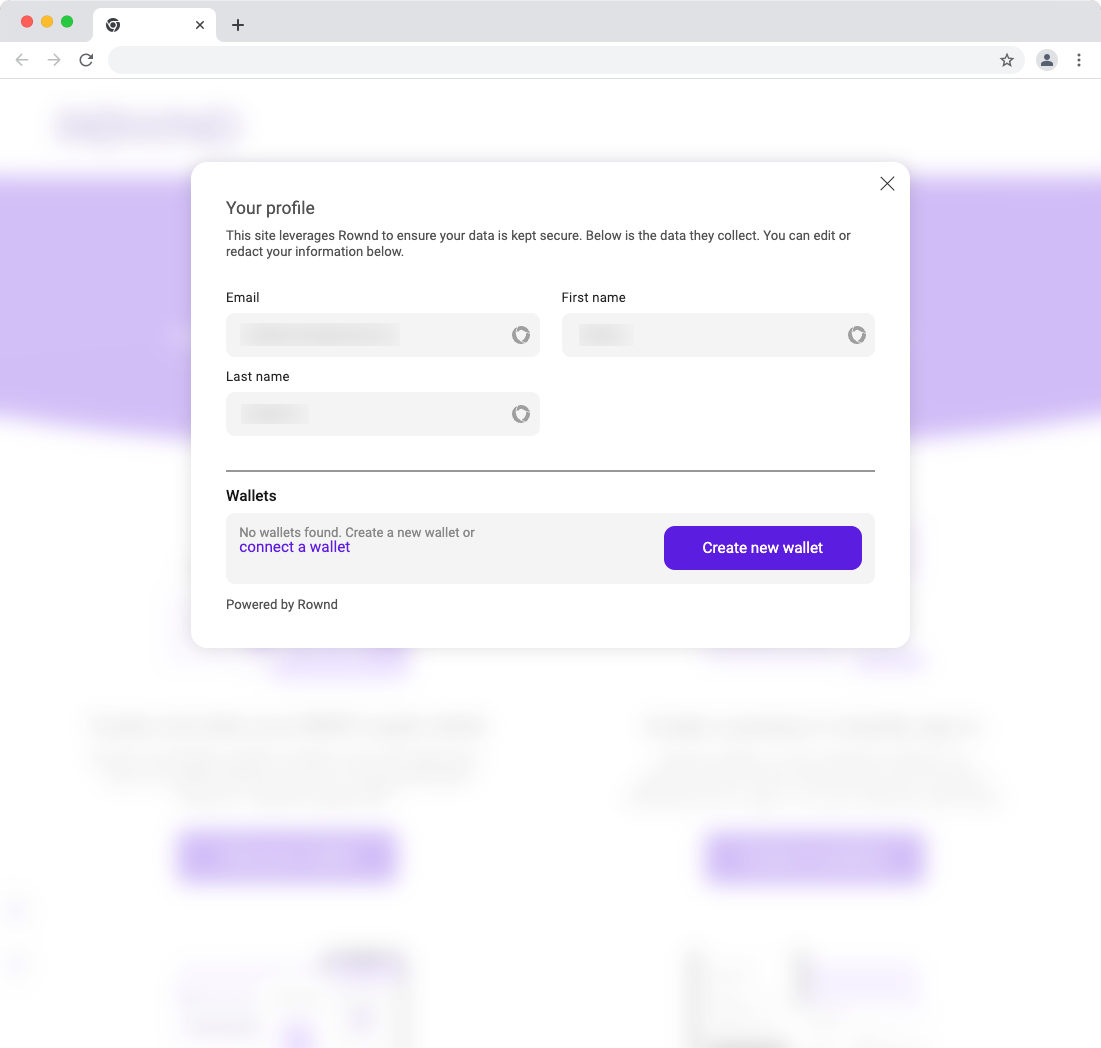
Show the user profile dialog
```javascript theme={null}
rownd.user.manageAccount()
```
 ## `auth`
Returns `true` if the current user is a verified user. In practice, this means that they have at least
one piece of verified data (email, phone, etc).
```javascript theme={null}
if (rownd.auth.isVerifiedUser()) {
console.log('verified!')
}
```
## `requestFields()`
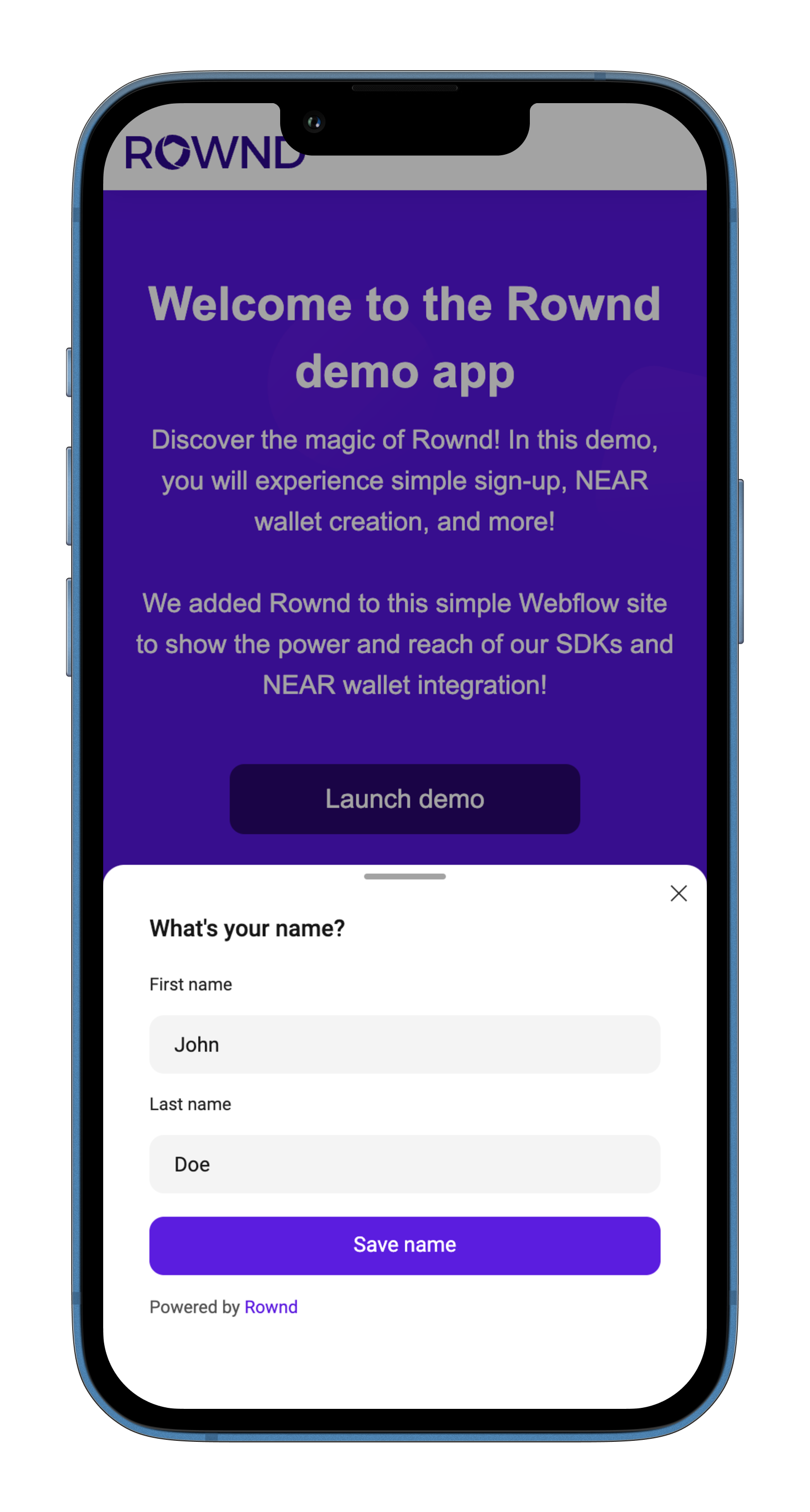
Prompt the user to enter values to save in their data. You can specify the fields, submit button content, and the
queustion/prompt.
### Examples
#### Prompt the user to enter their first and last name
```javascript theme={null}
rownd.requestFields({
fields: ['first_name', 'last_name'],
buttonText: 'Save name',
questionText: 'What\'s your name?'
});
```
## `auth`
Returns `true` if the current user is a verified user. In practice, this means that they have at least
one piece of verified data (email, phone, etc).
```javascript theme={null}
if (rownd.auth.isVerifiedUser()) {
console.log('verified!')
}
```
## `requestFields()`
Prompt the user to enter values to save in their data. You can specify the fields, submit button content, and the
queustion/prompt.
### Examples
#### Prompt the user to enter their first and last name
```javascript theme={null}
rownd.requestFields({
fields: ['first_name', 'last_name'],
buttonText: 'Save name',
questionText: 'What\'s your name?'
});
```
 ### Parameters
List of the field names for which to prompt the user.
The fields must exist in your application's Data Types in order to save the data to the user's profile
The text to show on the submit button
The prompt or question displayed on the dialog
## `near`
The `near` API allows you to interact with the Rownd's [NEAR integration](../configuration/web3/near-overview.mdx).
Creates an implicit NEAR account for the current user if one doesn't already exist
```javascript theme={null}
const accountId = rownd.near.ensureImplicitAccount()
```
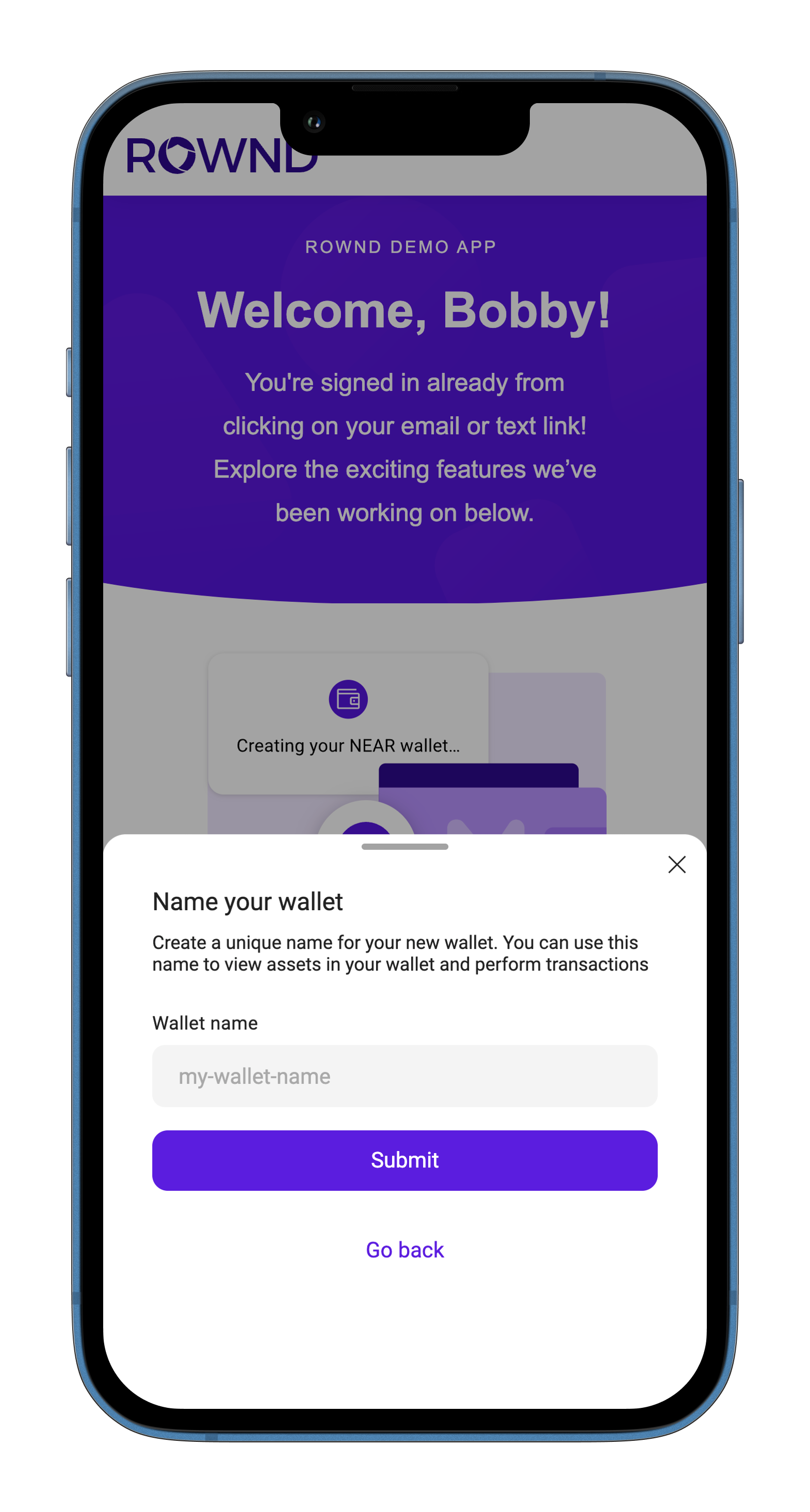
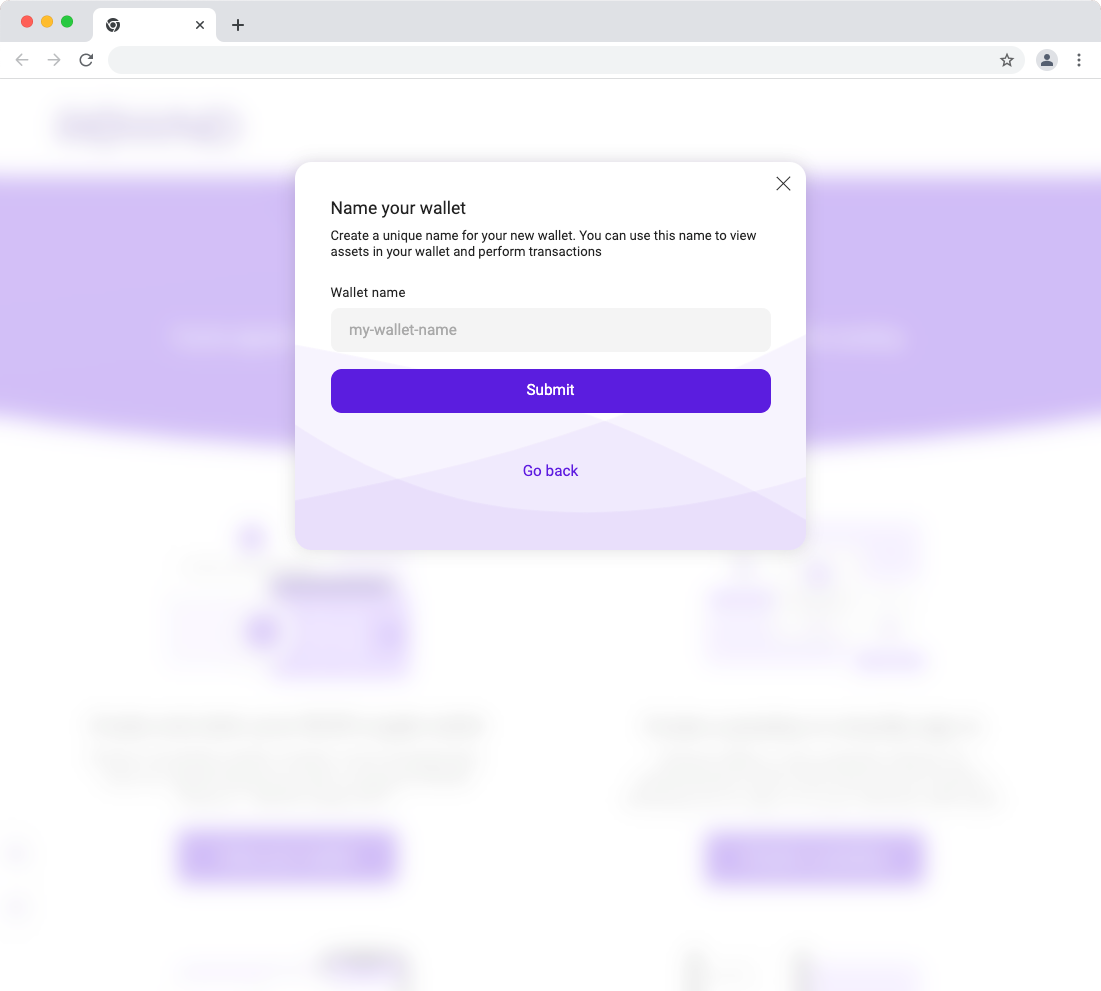
Prompts the user to create a named NEAR account
```javascript theme={null}
const accountId = rownd.near.createNamedAccount()
```
### Parameters
List of the field names for which to prompt the user.
The fields must exist in your application's Data Types in order to save the data to the user's profile
The text to show on the submit button
The prompt or question displayed on the dialog
## `near`
The `near` API allows you to interact with the Rownd's [NEAR integration](../configuration/web3/near-overview.mdx).
Creates an implicit NEAR account for the current user if one doesn't already exist
```javascript theme={null}
const accountId = rownd.near.ensureImplicitAccount()
```
Prompts the user to create a named NEAR account
```javascript theme={null}
const accountId = rownd.near.createNamedAccount()
```
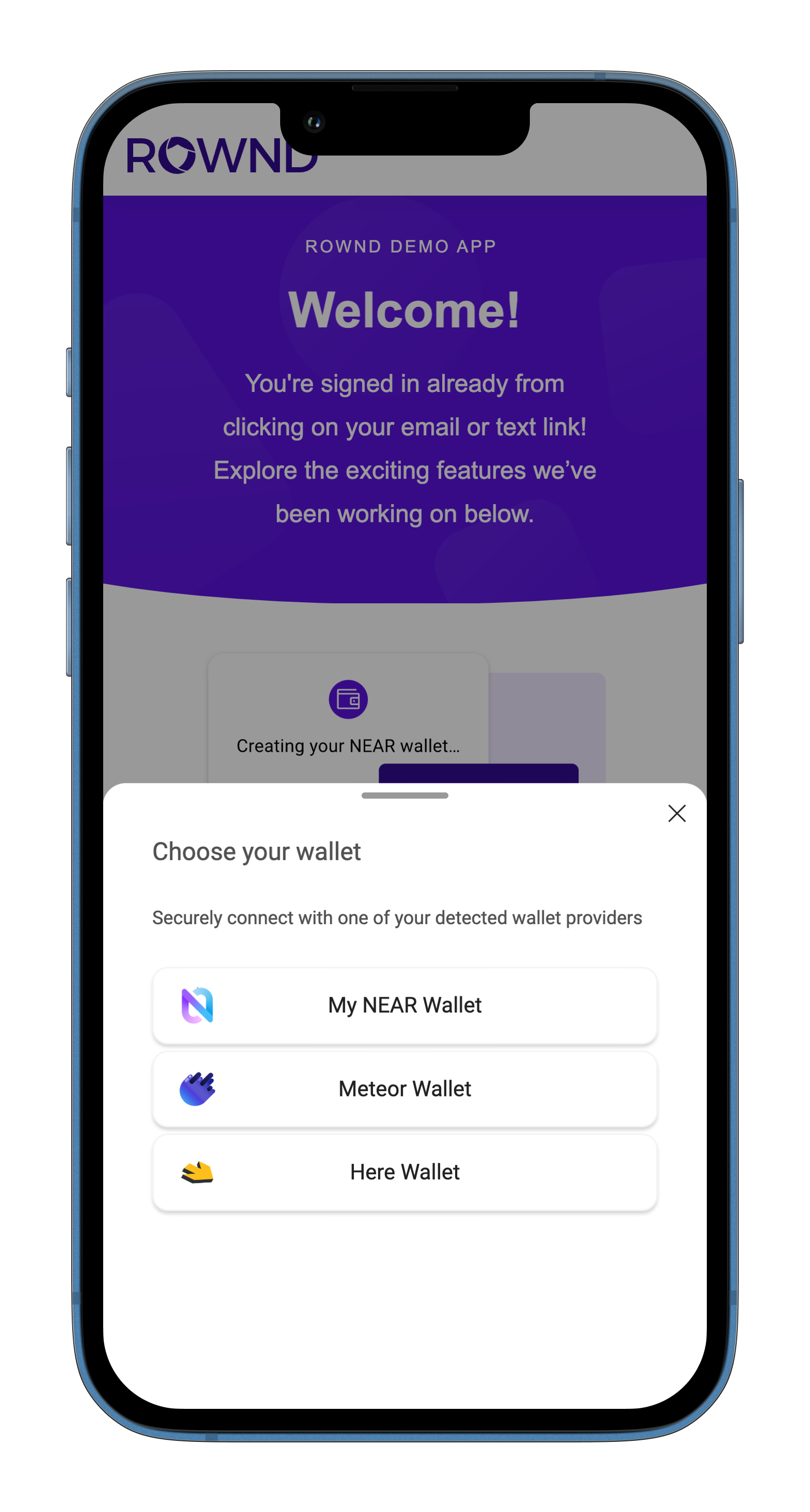
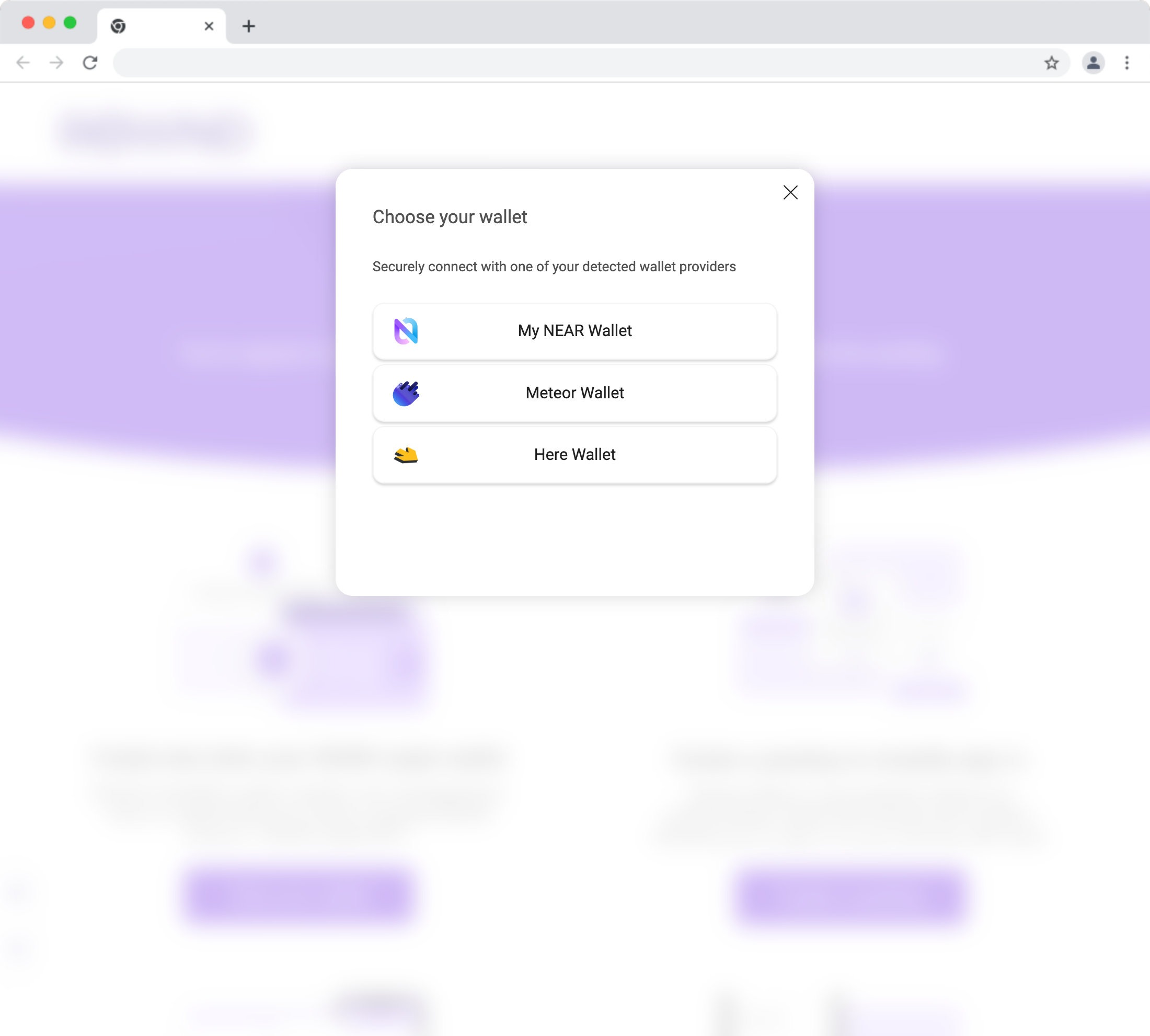
 Prompts the user to connect a NEAR accuont
```javascript theme={null}
rownd.near.connectAccount()
```
Prompts the user to connect a NEAR accuont
```javascript theme={null}
rownd.near.connectAccount()
```
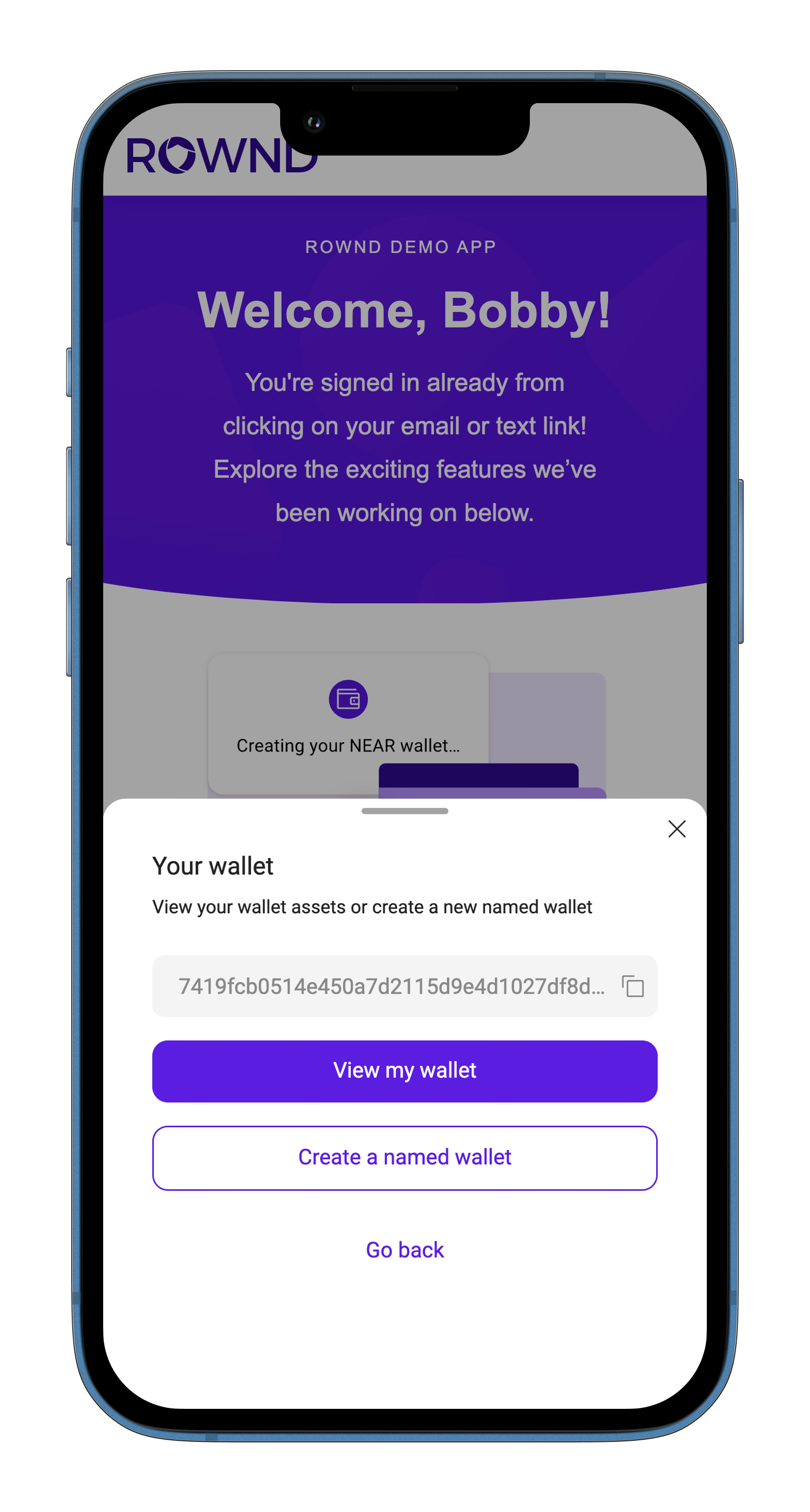
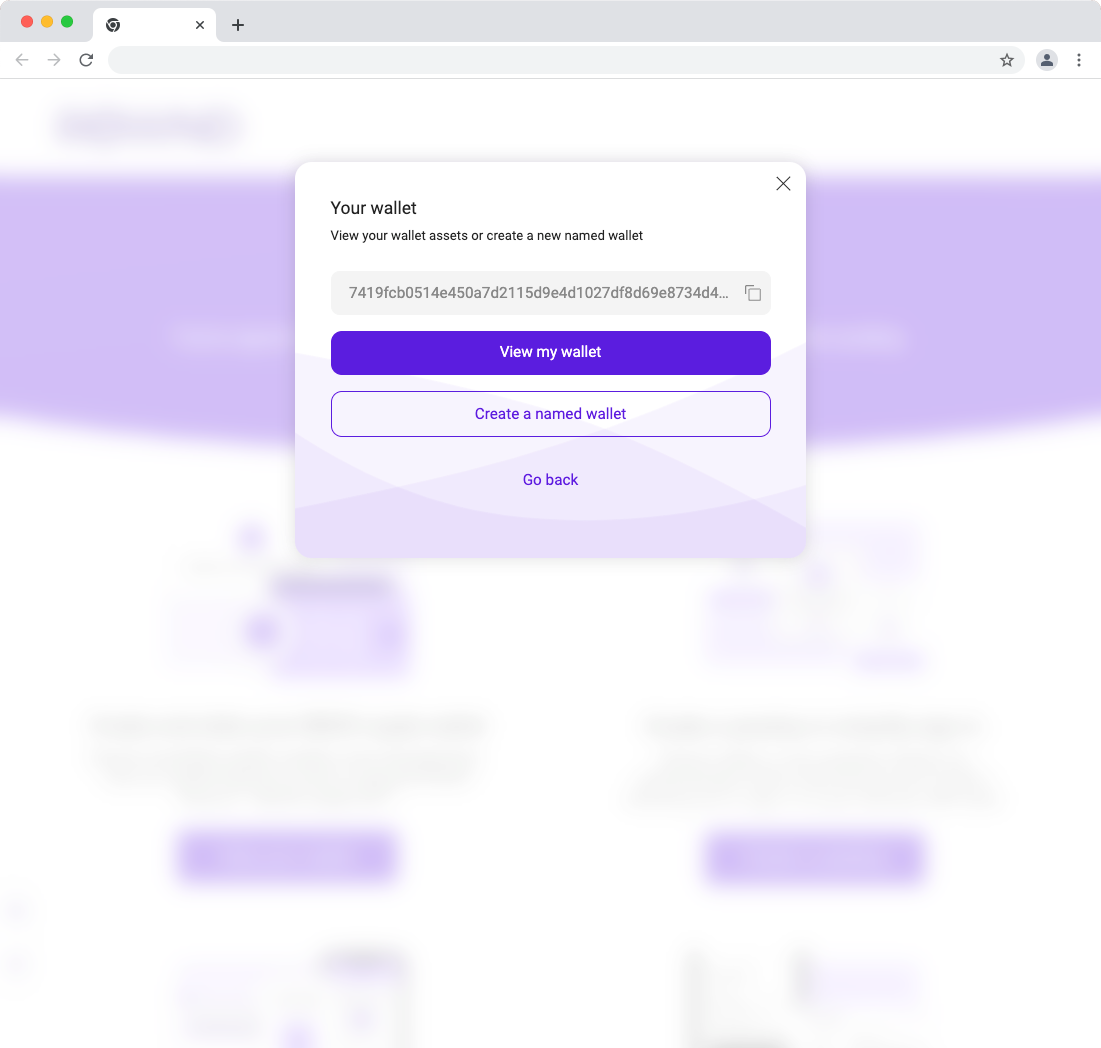
 Opens a dialog showing the details of the user's implicit NEAR account
```javascript theme={null}
const accountId = rownd.near.walletDetails()
```
Opens a dialog showing the details of the user's implicit NEAR account
```javascript theme={null}
const accountId = rownd.near.walletDetails()
```
 ## `LoginStep`
A step in the Rownd sign-in dialog. Used when calling [requestSignIn](#requestsignin) to show
a specific step.
## `LoginStep`
A step in the Rownd sign-in dialog. Used when calling [requestSignIn](#requestsignin) to show
a specific step.