> ## Documentation Index
> Fetch the complete documentation index at: https://docs.rownd.io/llms.txt
> Use this file to discover all available pages before exploring further.
# WordPress / WooCommerce
> Add Rownd to your WordPress site with a simple plugin
When you install the Rownd plugin for WordPress, you'll bring our powerfully
simple authentication and user account capabilities into your website, blog, or
e-commerce site.
Rownd integrates with the existing WordPress user management system, which means
we're compatible with WooCommerce and many other WordPress addons!
Whether you're accepting user signups already or want to start, Rownd makes it
ultra-simple to get visitors and customers up and running quickly. Easily
trigger our sign-in dialog by setting some HTML data attributes in your code or
writing some simple Javascript and we'll handle getting your users verified and
signed in using our unique, passwordless approach.
## To get started, you'll need:
1. A free [Rownd account](https://app.rownd.io)
2. A Rownd [app key](https://docs.rownd.io/configuration/app-credentials)
3. Add [allowed web origins](https://docs.rownd.io/security/attack-mitigation/domain-allow-list#configuring-the-domain-allow-list)
Once you install this plugin, drop your app key and secret into our settings and
you'll be good to go!
## Installation
### Automated installation
1. Open your WordPress site's admin dashboard. This is usually something like
`https://mycompany.com/wp-admin`.
2. Navigate to **Plugins > Add new.**
3. In the text field labeled "Search plugins," type **Rownd** and wait a moment
for the search to load the results.\\
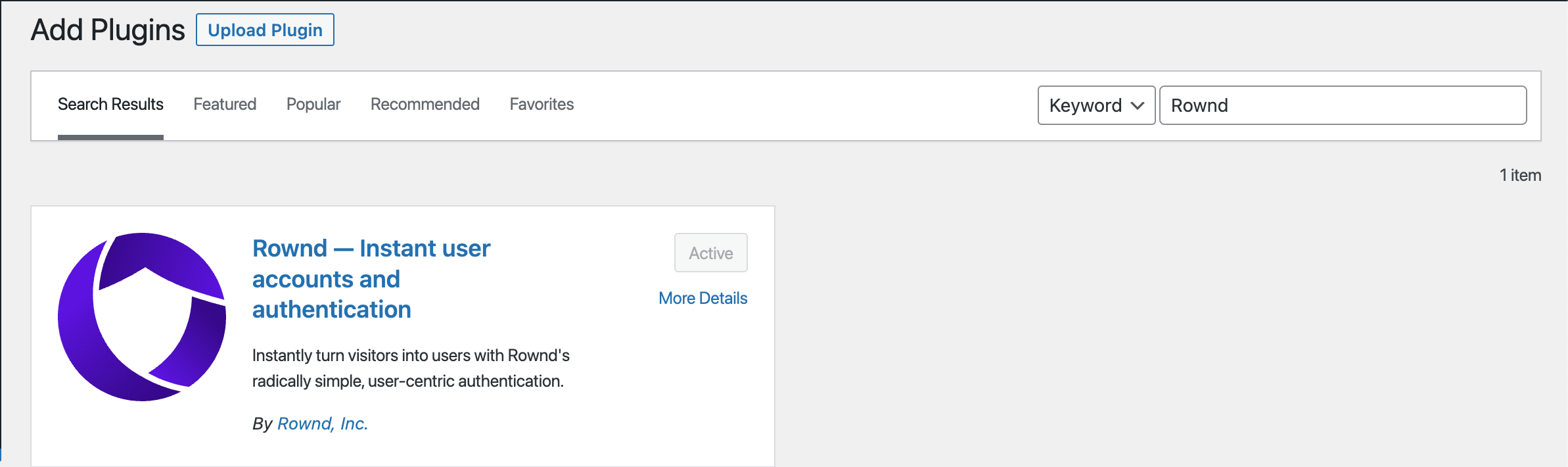 4. Click **Install** then click **Activate.**
5. In the sidebar, click **Rownd** followed by Settings.
6. Enter your Rownd app keys obtained from the [Rownd platform](https://app.rownd.io)
4. Click **Install** then click **Activate.**
5. In the sidebar, click **Rownd** followed by Settings.
6. Enter your Rownd app keys obtained from the [Rownd platform](https://app.rownd.io)
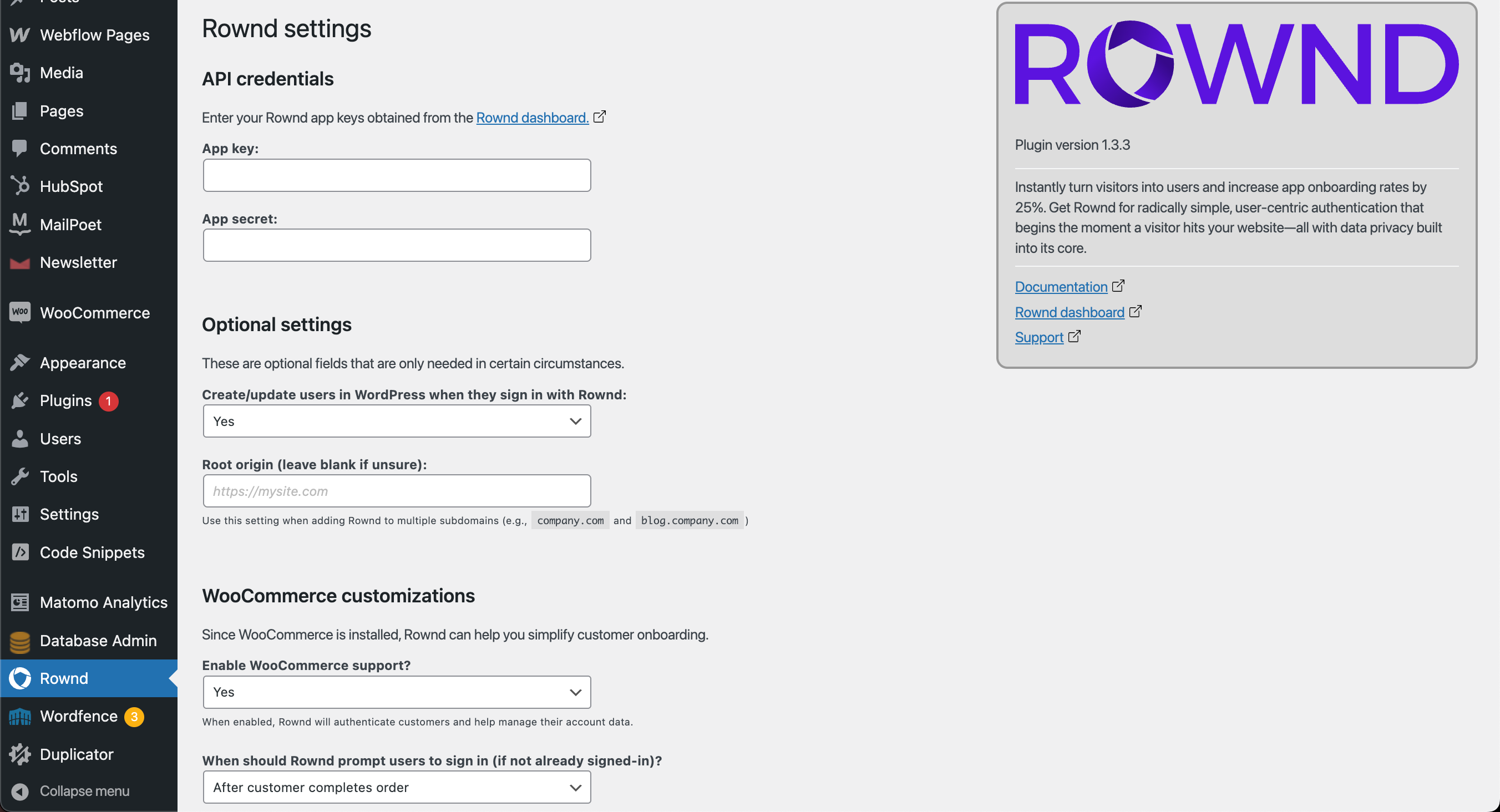 7. Click **Save settings**
### Manual install
1. Visit the
[Rownd plugin details](https://wordpress.org/plugins/rownd-accounts-and-authentication/)
within the WordPress plugin directory.
2. Click **Download** to grab the latest plugin `.zip` file.
3. Extract the contents of the file into a folder called
`rownd-accounts-and-authentication` within your `wp-content/plugins` folder.
The naming here is important!
4. Open your site's WordPress Admin dashboard, navigate to the plugin list, and
click the **Activate** link in the row entitled "Rownd Accounts and
Authentication."\\
7. Click **Save settings**
### Manual install
1. Visit the
[Rownd plugin details](https://wordpress.org/plugins/rownd-accounts-and-authentication/)
within the WordPress plugin directory.
2. Click **Download** to grab the latest plugin `.zip` file.
3. Extract the contents of the file into a folder called
`rownd-accounts-and-authentication` within your `wp-content/plugins` folder.
The naming here is important!
4. Open your site's WordPress Admin dashboard, navigate to the plugin list, and
click the **Activate** link in the row entitled "Rownd Accounts and
Authentication."\\
 ### Video guide